> ## Documentation Index
> Fetch the complete documentation index at: https://help.konfhub.com/llms.txt
> Use this file to discover all available pages before exploring further.
# KonfHub Check-In App: Fast, Flexible Attendee Check-In
> Use KonfHub's Check-In App to scan QR codes, print badges, handle on-spot registrations, and manage multi-day check-ins — works offline and on any device.
The KonfHub Check-In App is your all-in-one solution for managing attendee entry at events of any scale. Whether you're welcoming 50 guests at a workshop or processing thousands of delegates at a major conference, the app eliminates long queues and manual processes by giving you blazing-fast QR code scanning, on-the-spot badge printing, and multi-zone check-in support — all from a single web app that requires zero installation. Access it anytime at [checkin.konfhub.com](https://checkin.konfhub.com).
 ## Core Check-In Methods
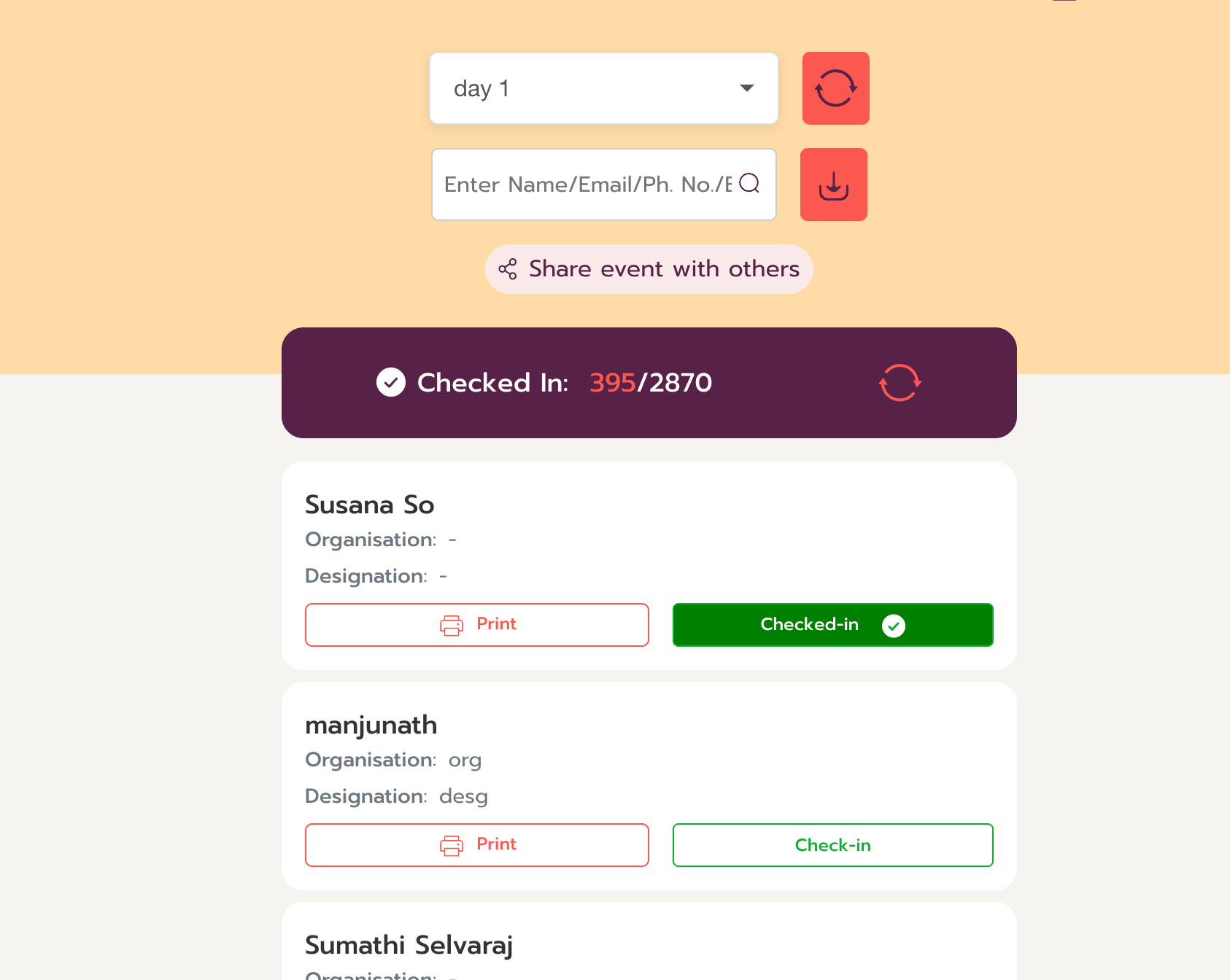
KonfHub gives your check-in staff multiple ways to verify and admit attendees, so no one is held up regardless of their situation.
Scan the QR code on an attendee's digital or printed ticket. The entire scan-and-confirm cycle completes in under 3 seconds, keeping entry lines moving even at peak arrival times.
If an attendee can't find their ticket, search for them instantly by name, email address, or phone number. Results appear in real time, so your staff can complete check-in without delay.
Deploy camera-based check-in where attendees simply face the camera to be recognized and admitted — no QR code or physical badge needed. Ideal for VIP lanes or high-volume entry points.
Register walk-in attendees directly from the Check-In App at the venue. Collect their details, create their record, and check them in — all in one seamless flow without turning anyone away.
## Badge Printing
The Check-In App includes a fully integrated badge printing workflow. You design the badge inside the app and print it the moment an attendee checks in — no separate design software required.
### Badge Designer
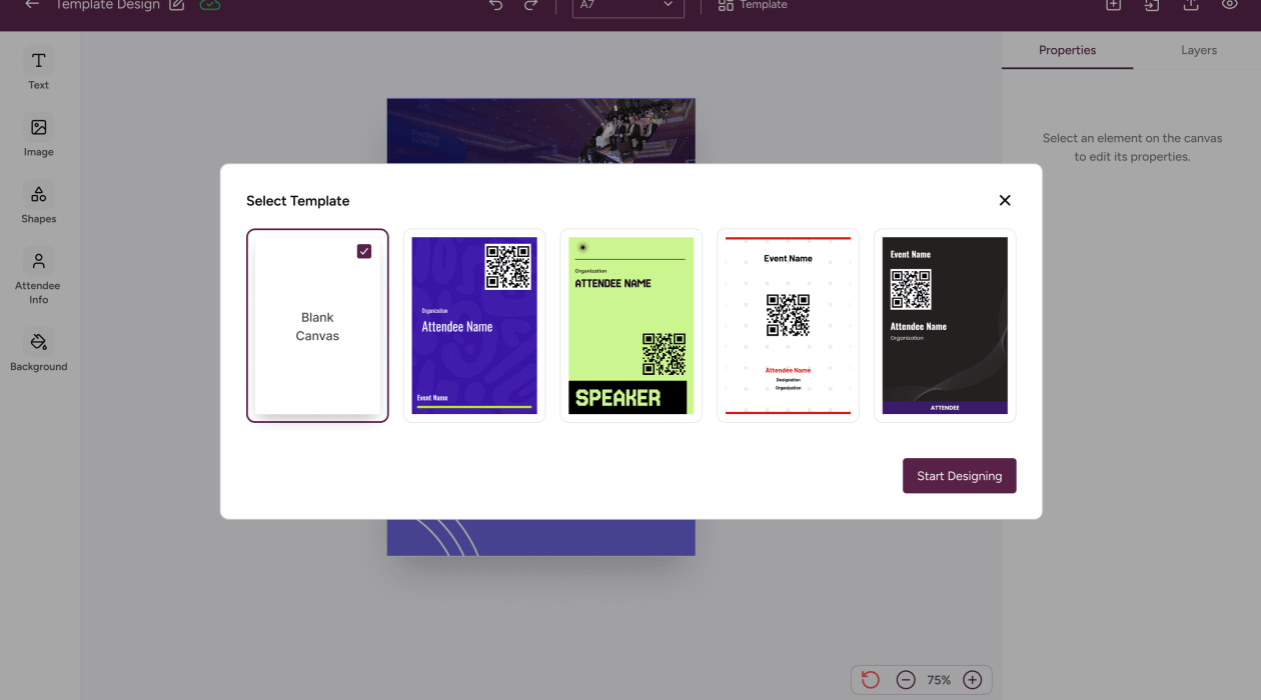
KonfHub's Badge Designer gives you complete creative control over the look and layout of your event badges. Open the designer from within the Check-In App, then:
* **Add** fields such as name, company, ticket type, and QR code anywhere on the badge canvas.
* **Choose your fields** — display exactly the information relevant to your event, whether that's the attendee's job title, dietary preference, or a custom registration field.
* **Set fonts, sizes, and colors** to match your event branding.
* **Preview** the badge before printing to catch layout issues early.
No prior design experience is needed. The intuitive interface lets any team member produce professional, branded badges in minutes.
## Core Check-In Methods
KonfHub gives your check-in staff multiple ways to verify and admit attendees, so no one is held up regardless of their situation.
Scan the QR code on an attendee's digital or printed ticket. The entire scan-and-confirm cycle completes in under 3 seconds, keeping entry lines moving even at peak arrival times.
If an attendee can't find their ticket, search for them instantly by name, email address, or phone number. Results appear in real time, so your staff can complete check-in without delay.
Deploy camera-based check-in where attendees simply face the camera to be recognized and admitted — no QR code or physical badge needed. Ideal for VIP lanes or high-volume entry points.
Register walk-in attendees directly from the Check-In App at the venue. Collect their details, create their record, and check them in — all in one seamless flow without turning anyone away.
## Badge Printing
The Check-In App includes a fully integrated badge printing workflow. You design the badge inside the app and print it the moment an attendee checks in — no separate design software required.
### Badge Designer
KonfHub's Badge Designer gives you complete creative control over the look and layout of your event badges. Open the designer from within the Check-In App, then:
* **Add** fields such as name, company, ticket type, and QR code anywhere on the badge canvas.
* **Choose your fields** — display exactly the information relevant to your event, whether that's the attendee's job title, dietary preference, or a custom registration field.
* **Set fonts, sizes, and colors** to match your event branding.
* **Preview** the badge before printing to catch layout issues early.
No prior design experience is needed. The intuitive interface lets any team member produce professional, branded badges in minutes.
 ### Printing Options
Print standard single-sided badges with attendee details on the front.
Print information on both sides of the badge — perfect for including the event schedule, sponsor logos, or additional attendee fields on the back.
Send print jobs directly to the printer without displaying browser print dialogs, enabling a smooth, interruption-free check-in experience at busy entry desks.
The app works with a broad range of badge printers and standard office printers. It has been battle-tested across thousands of events in diverse hardware environments.
Print badges on demand as attendees check in, or pre-print a batch before doors open. Both workflows are supported, and you can reprint any badge at any time from the attendee record.
## Offline Check-Ins
Unreliable Wi-Fi is one of the most common problems at event venues. The KonfHub Check-In App handles it gracefully.
When your internet connection drops, the app continues to work locally on the device. Check-ins are recorded and queued in device storage. The moment connectivity is restored — whether that's seconds or hours later — all check-in data syncs automatically across every device connected to the event. Your attendance records stay accurate regardless of the venue's network quality.
Offline mode works across all supported devices and platforms. Make sure the app has loaded fully while you still have internet access before moving to a location without connectivity.
## Self-Check-In Kiosk Mode
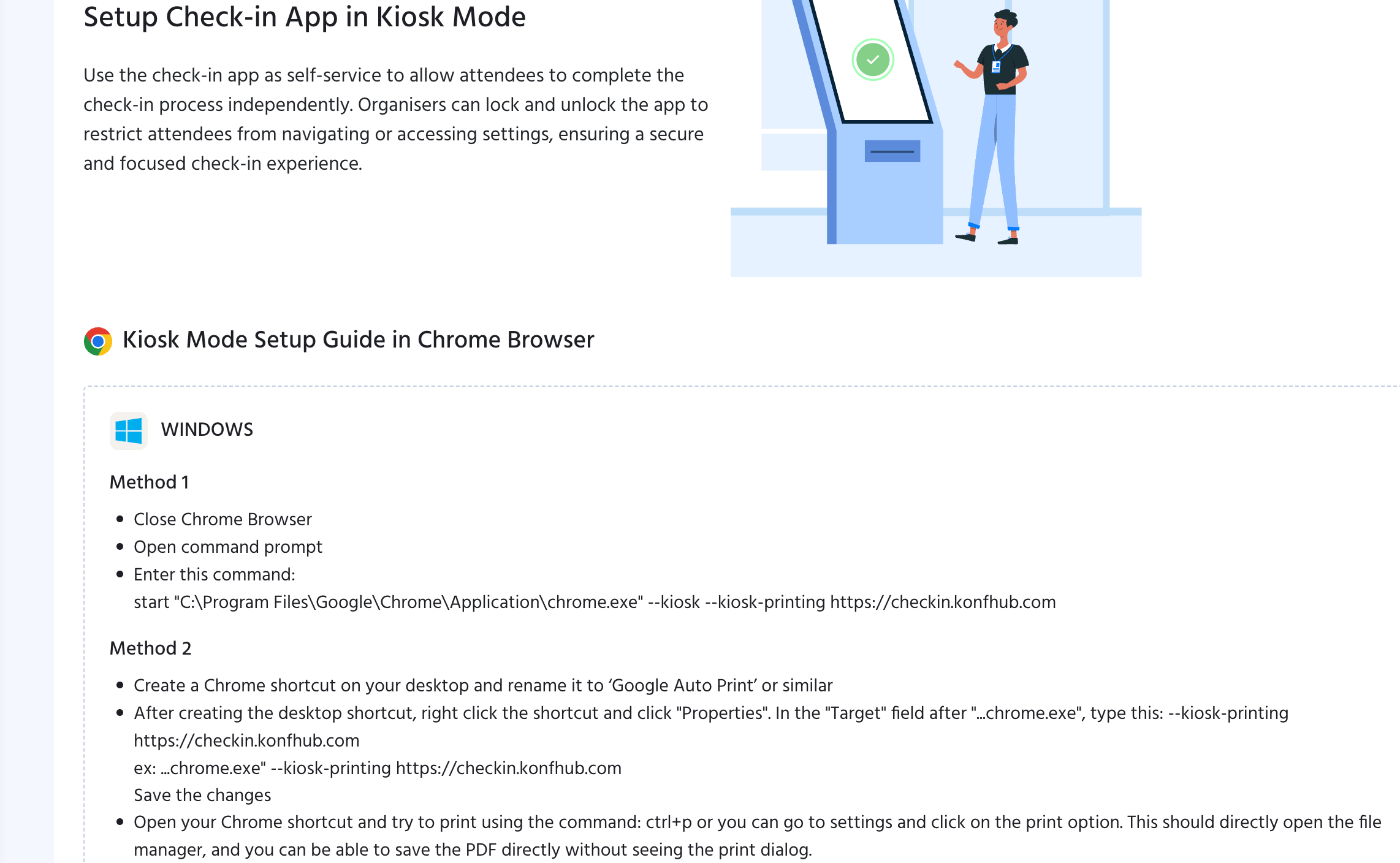
Turn any tablet, phone, or desktop terminal into a self-service check-in station. In kiosk mode, the Check-In App presents a simplified interface that attendees use themselves — they scan their own QR code or search for their name, and the kiosk confirms their entry and triggers badge printing if configured.
Kiosk mode runs on:
* **Android** phones and tablets
* **iOS** iPhones and iPads
* **Windows** desktops and all-in-one terminals
Because the app is a PWA, you don't need to install dedicated kiosk software. Simply open the browser, navigate to the Check-In App, and set up kiosk mode from the settings menu.
### Printing Options
Print standard single-sided badges with attendee details on the front.
Print information on both sides of the badge — perfect for including the event schedule, sponsor logos, or additional attendee fields on the back.
Send print jobs directly to the printer without displaying browser print dialogs, enabling a smooth, interruption-free check-in experience at busy entry desks.
The app works with a broad range of badge printers and standard office printers. It has been battle-tested across thousands of events in diverse hardware environments.
Print badges on demand as attendees check in, or pre-print a batch before doors open. Both workflows are supported, and you can reprint any badge at any time from the attendee record.
## Offline Check-Ins
Unreliable Wi-Fi is one of the most common problems at event venues. The KonfHub Check-In App handles it gracefully.
When your internet connection drops, the app continues to work locally on the device. Check-ins are recorded and queued in device storage. The moment connectivity is restored — whether that's seconds or hours later — all check-in data syncs automatically across every device connected to the event. Your attendance records stay accurate regardless of the venue's network quality.
Offline mode works across all supported devices and platforms. Make sure the app has loaded fully while you still have internet access before moving to a location without connectivity.
## Self-Check-In Kiosk Mode
Turn any tablet, phone, or desktop terminal into a self-service check-in station. In kiosk mode, the Check-In App presents a simplified interface that attendees use themselves — they scan their own QR code or search for their name, and the kiosk confirms their entry and triggers badge printing if configured.
Kiosk mode runs on:
* **Android** phones and tablets
* **iOS** iPhones and iPads
* **Windows** desktops and all-in-one terminals
Because the app is a PWA, you don't need to install dedicated kiosk software. Simply open the browser, navigate to the Check-In App, and set up kiosk mode from the settings menu.
 ## Multi-Check-In Support
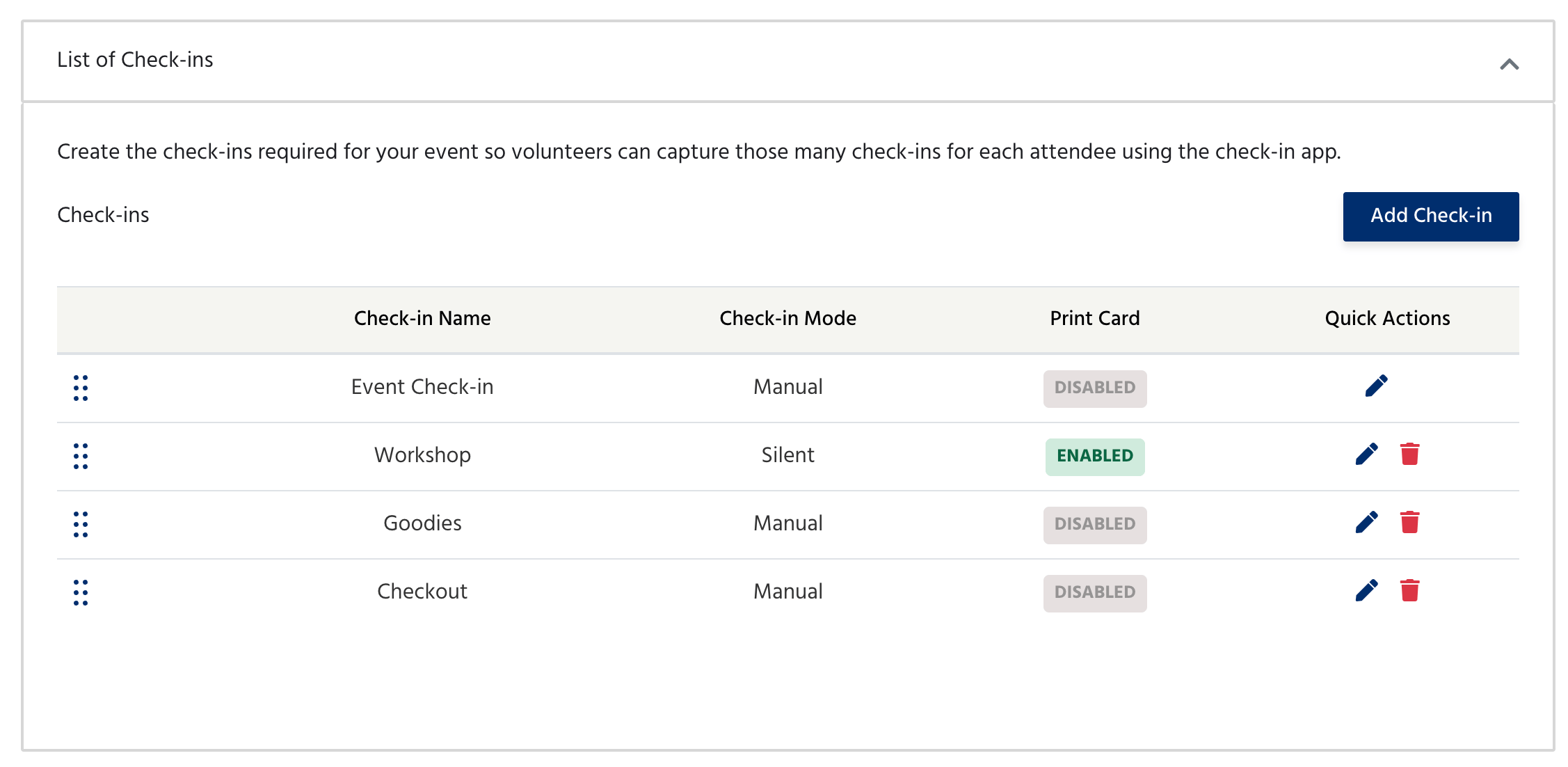
Events often require more than a single entry point. Multi-check-in support lets you configure and track separate check-in stations for different purposes — all under the same event.
Set up a distinct check-in for each day of a multi-day conference, summit, or festival. Attendance is tracked per day, giving you accurate daily headcounts in your analytics.
Create check-in points for specific halls, expo zones, or restricted areas. Only attendees with the appropriate ticket type or access level can check in at each zone, enforcing your access control policy automatically.
Track attendance at individual workshops, masterclasses, or breakout sessions. Confirm seat occupancy against registration and prevent overcrowding.
Use multi-check-in to record when attendees collect conference kits, T-shirts, lunch, or any other item. Each collection is timestamped and logged against the attendee record, eliminating duplicate collections and paper-based tracking.
Require a security sign-off at a dedicated check-in point before an attendee can proceed to certain areas. Multi-check-in handles sequential gates seamlessly.
## Multi-Check-In Support
Events often require more than a single entry point. Multi-check-in support lets you configure and track separate check-in stations for different purposes — all under the same event.
Set up a distinct check-in for each day of a multi-day conference, summit, or festival. Attendance is tracked per day, giving you accurate daily headcounts in your analytics.
Create check-in points for specific halls, expo zones, or restricted areas. Only attendees with the appropriate ticket type or access level can check in at each zone, enforcing your access control policy automatically.
Track attendance at individual workshops, masterclasses, or breakout sessions. Confirm seat occupancy against registration and prevent overcrowding.
Use multi-check-in to record when attendees collect conference kits, T-shirts, lunch, or any other item. Each collection is timestamped and logged against the attendee record, eliminating duplicate collections and paper-based tracking.
Require a security sign-off at a dedicated check-in point before an attendee can proceed to certain areas. Multi-check-in handles sequential gates seamlessly.
 ## Progressive Web App — No Installation Required
The KonfHub Check-In App is a Progressive Web App (PWA). This means:
* **No download from an app store.** Open a browser (*Chrome browser works the best*), go to [checkin.konfhub.com](https://checkin.konfhub.com), and start working.
* **Works on every platform.** Android, iOS, and Windows — on phones, tablets, laptops, and desktops.
* **Optional installation.** If you prefer a native-app feel, use your browser's "Add to Home Screen" option to install it like a regular app. Either way, it stays fully up to date without manual updates.
## Role-Based Access Control (RBAC)
Organizers can assign specific roles to check-in staff, controlling exactly what each team member can see and do inside the app. This ensures accountability, limits exposure of sensitive data, and makes it easy to onboard volunteers or temporary staff with minimal risk.
Dedicated Check-In App roles give you:
* **Flexibility** — assign the right level of access to each staff member based on their responsibilities.
* **Security** — prevent unauthorized changes to registration data or event settings.
* **Audit trails** — track who checked in which attendee, and when, for full accountability.
There are two types of checkin roles that can be assigned to your team member.
## Progressive Web App — No Installation Required
The KonfHub Check-In App is a Progressive Web App (PWA). This means:
* **No download from an app store.** Open a browser (*Chrome browser works the best*), go to [checkin.konfhub.com](https://checkin.konfhub.com), and start working.
* **Works on every platform.** Android, iOS, and Windows — on phones, tablets, laptops, and desktops.
* **Optional installation.** If you prefer a native-app feel, use your browser's "Add to Home Screen" option to install it like a regular app. Either way, it stays fully up to date without manual updates.
## Role-Based Access Control (RBAC)
Organizers can assign specific roles to check-in staff, controlling exactly what each team member can see and do inside the app. This ensures accountability, limits exposure of sensitive data, and makes it easy to onboard volunteers or temporary staff with minimal risk.
Dedicated Check-In App roles give you:
* **Flexibility** — assign the right level of access to each staff member based on their responsibilities.
* **Security** — prevent unauthorized changes to registration data or event settings.
* **Audit trails** — track who checked in which attendee, and when, for full accountability.
There are two types of checkin roles that can be assigned to your team member.
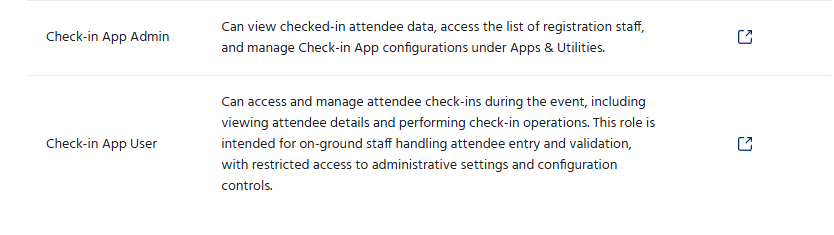 1. Check-in App Admin: Check-in App admin has the access to manage, view and download the data from the app.
2. Check-in App User: The Check-in App User has the access to manage and view the data but cannot download it.
Assign roles before your event day from the Team section of your event dashboard, so all staff arrive with the correct permissions already in place.
## Controlling Access with Event Access Codes
You can control when and for how long check-in staff can access your event inside the app using event access codes. An Access code is visible in your event dashboard and can be share it with your registration team. During the event, anyone with the code can log into the Check-In App and begin working. Once the event concludes, you can revoke or expire the code so that access is automatically removed — without needing to manage individual staff accounts.
1. Check-in App Admin: Check-in App admin has the access to manage, view and download the data from the app.
2. Check-in App User: The Check-in App User has the access to manage and view the data but cannot download it.
Assign roles before your event day from the Team section of your event dashboard, so all staff arrive with the correct permissions already in place.
## Controlling Access with Event Access Codes
You can control when and for how long check-in staff can access your event inside the app using event access codes. An Access code is visible in your event dashboard and can be share it with your registration team. During the event, anyone with the code can log into the Check-In App and begin working. Once the event concludes, you can revoke or expire the code so that access is automatically removed — without needing to manage individual staff accounts.
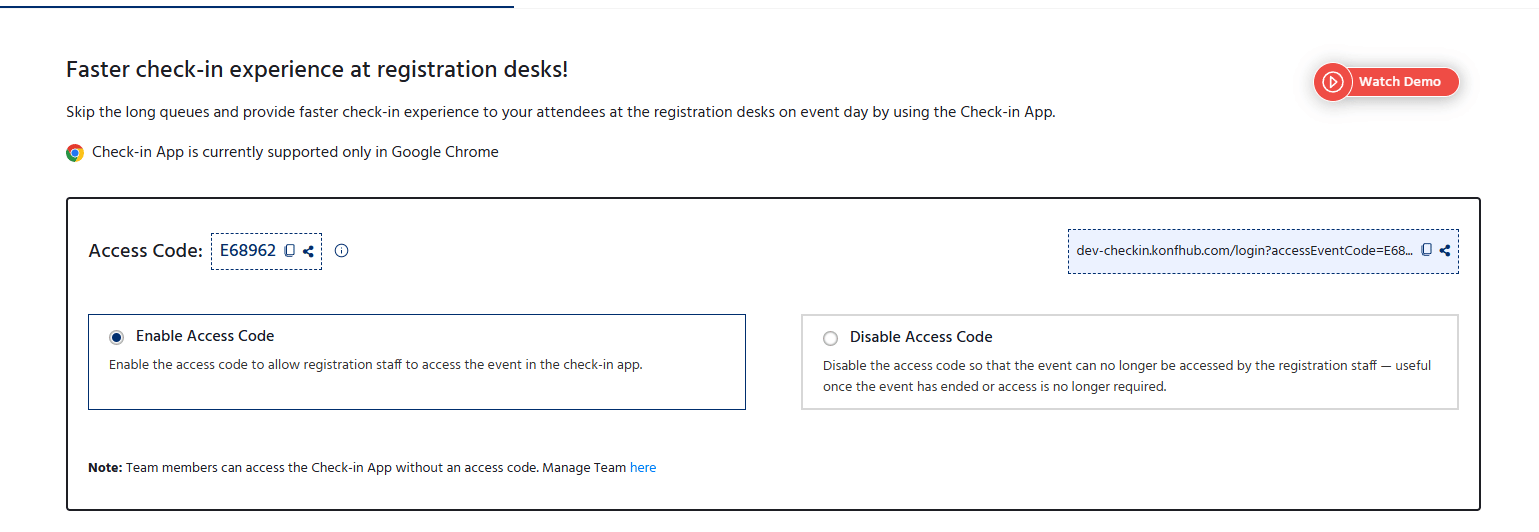 This is especially useful for:
* **Volunteers and temporary staff** who need short-term access.
* **Multi-venue events** where different teams manage different locations.
* **Security-conscious organizers** who want a clear on/off switch for app access.
## Supported Devices and Scanners
The Check-In App works with virtually every scanner and printer combination your team might use:
| Device Type | Supported |
| ------------------------------ | --------- |
| Android phone / tablet | ✅ |
| iPhone / iPad | ✅ |
| Windows laptop / desktop | ✅ |
| External USB barcode scanners | ✅ |
| Bluetooth barcode scanners | ✅ |
| Built-in device cameras | ✅ |
| Standard network printers | ✅ |
| Dedicated badge/label printers | ✅ |
## How to Set Up and Use the Check-In App
Navigate to [checkin.konfhub.com](https://checkin.konfhub.com) in any modern browser on your check-in device. No installation is required.
Sign in with your KonfHub organizer account, or enter the event access code you've distributed to check-in staff. You'll be taken directly to your event's check-in dashboard.
If you've configured multiple check-in points (entry gate, workshop room, goodies desk, etc.), select the relevant one for this device. Each station tracks its own data independently while syncing to the central event record.
Open the Badge Designer from the settings menu to create your badge layout. Drag fields onto the canvas, adjust fonts and colors, and save your design. Connect your printer and run a test print to confirm alignment.
From your event dashboard, assign RBAC roles to each team member who will be using the Check-In App. Make sure every volunteer or staff member has the correct access level before doors open.
Click **Scan QR Code** to activate the camera or USB scanner, then scan an attendee's ticket. The app confirms the check-in instantly. Alternatively, use the search bar to find an attendee by name, email, or phone. The badge prints automatically if you have silent printing configured.
For attendees who haven't pre-registered, select **On-Spot Registration**, enter their details, and complete their check-in in a single step. They receive a ticket and are logged in your attendee records immediately.
Check-in counts and attendee status update in real time across all devices. Review attendance data from your event dashboard at any time during or after the event.
If your venue has unreliable internet, open the Check-In App and fully load your event data while you still have a connection. The app will continue to work offline, syncing all check-in records as soon as connectivity returns.
This is especially useful for:
* **Volunteers and temporary staff** who need short-term access.
* **Multi-venue events** where different teams manage different locations.
* **Security-conscious organizers** who want a clear on/off switch for app access.
## Supported Devices and Scanners
The Check-In App works with virtually every scanner and printer combination your team might use:
| Device Type | Supported |
| ------------------------------ | --------- |
| Android phone / tablet | ✅ |
| iPhone / iPad | ✅ |
| Windows laptop / desktop | ✅ |
| External USB barcode scanners | ✅ |
| Bluetooth barcode scanners | ✅ |
| Built-in device cameras | ✅ |
| Standard network printers | ✅ |
| Dedicated badge/label printers | ✅ |
## How to Set Up and Use the Check-In App
Navigate to [checkin.konfhub.com](https://checkin.konfhub.com) in any modern browser on your check-in device. No installation is required.
Sign in with your KonfHub organizer account, or enter the event access code you've distributed to check-in staff. You'll be taken directly to your event's check-in dashboard.
If you've configured multiple check-in points (entry gate, workshop room, goodies desk, etc.), select the relevant one for this device. Each station tracks its own data independently while syncing to the central event record.
Open the Badge Designer from the settings menu to create your badge layout. Drag fields onto the canvas, adjust fonts and colors, and save your design. Connect your printer and run a test print to confirm alignment.
From your event dashboard, assign RBAC roles to each team member who will be using the Check-In App. Make sure every volunteer or staff member has the correct access level before doors open.
Click **Scan QR Code** to activate the camera or USB scanner, then scan an attendee's ticket. The app confirms the check-in instantly. Alternatively, use the search bar to find an attendee by name, email, or phone. The badge prints automatically if you have silent printing configured.
For attendees who haven't pre-registered, select **On-Spot Registration**, enter their details, and complete their check-in in a single step. They receive a ticket and are logged in your attendee records immediately.
Check-in counts and attendee status update in real time across all devices. Review attendance data from your event dashboard at any time during or after the event.
If your venue has unreliable internet, open the Check-In App and fully load your event data while you still have a connection. The app will continue to work offline, syncing all check-in records as soon as connectivity returns.