> ## Documentation Index
> Fetch the complete documentation index at: https://help.konfhub.com/llms.txt
> Use this file to discover all available pages before exploring further.
# Tickets
> Create and manage ticket types, pricing, capacity, and registration settings for your event.
The Tickets page is where you create and manage all the tickets for your event. You can have multiple ticket types - free, paid, hidden, or group - each with its own pricing, availability window, and settings. It has two tabs: **Tickets** and **Ticket Settings**.
Navigate to **Event Dashboard → Event Info → Tickets** to access this section.
***
## Tickets Tab
The Tickets tab shows all tickets created for your event as cards, grouped by category. Tickets that haven't been assigned a category appear under **Uncategorized Tickets**.
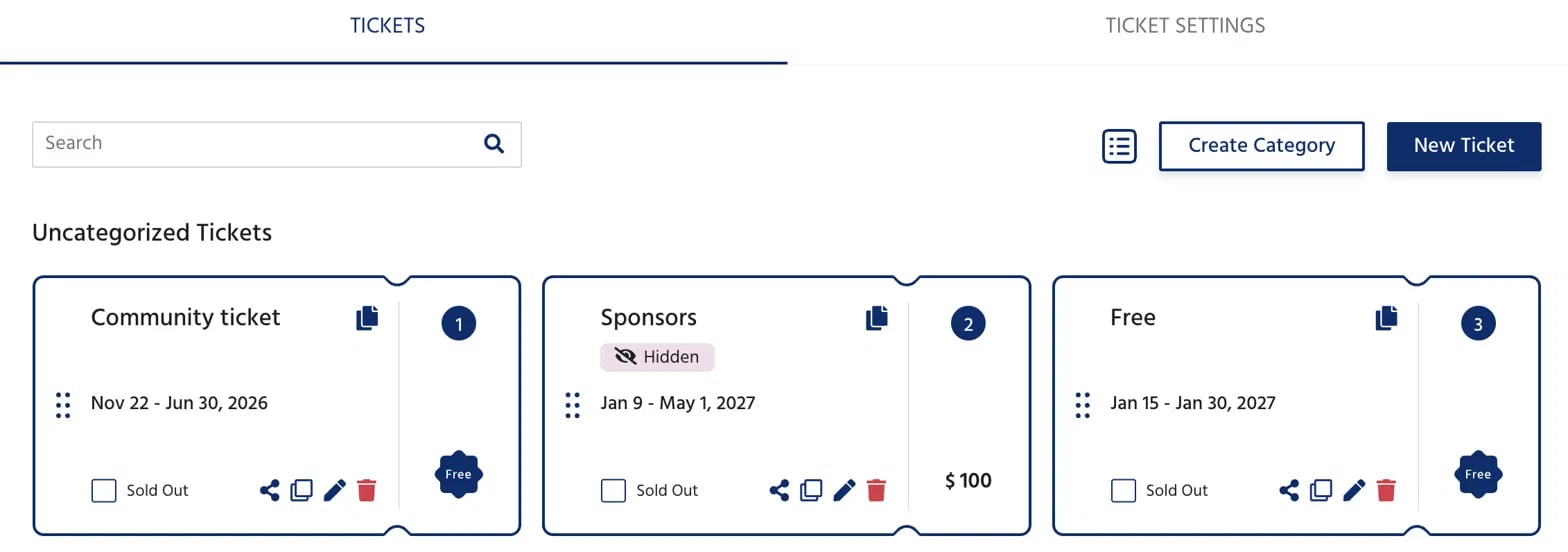 Each ticket card displays:
* **Ticket name** and a **Hidden** badge if the ticket is not publicly visible
* **Availability window** - the date range during which registrations are open
* **Price** - shown as Free or the ticket amount
* **Sold Out** checkbox - manually mark a ticket as sold out to stop new registrations
* Action icons - **Share**, **Duplicate**, **Edit**, and **Delete**
* A **numbered badge** showing the ticket's display order on the event page
Use the **Search** bar to quickly find a ticket by name, and the toggle at the top right to switch between card and list views.
***
## Creating a New Ticket
Click **New Ticket** to open the Create New Ticket form.
Each ticket card displays:
* **Ticket name** and a **Hidden** badge if the ticket is not publicly visible
* **Availability window** - the date range during which registrations are open
* **Price** - shown as Free or the ticket amount
* **Sold Out** checkbox - manually mark a ticket as sold out to stop new registrations
* Action icons - **Share**, **Duplicate**, **Edit**, and **Delete**
* A **numbered badge** showing the ticket's display order on the event page
Use the **Search** bar to quickly find a ticket by name, and the toggle at the top right to switch between card and list views.
***
## Creating a New Ticket
Click **New Ticket** to open the Create New Ticket form.
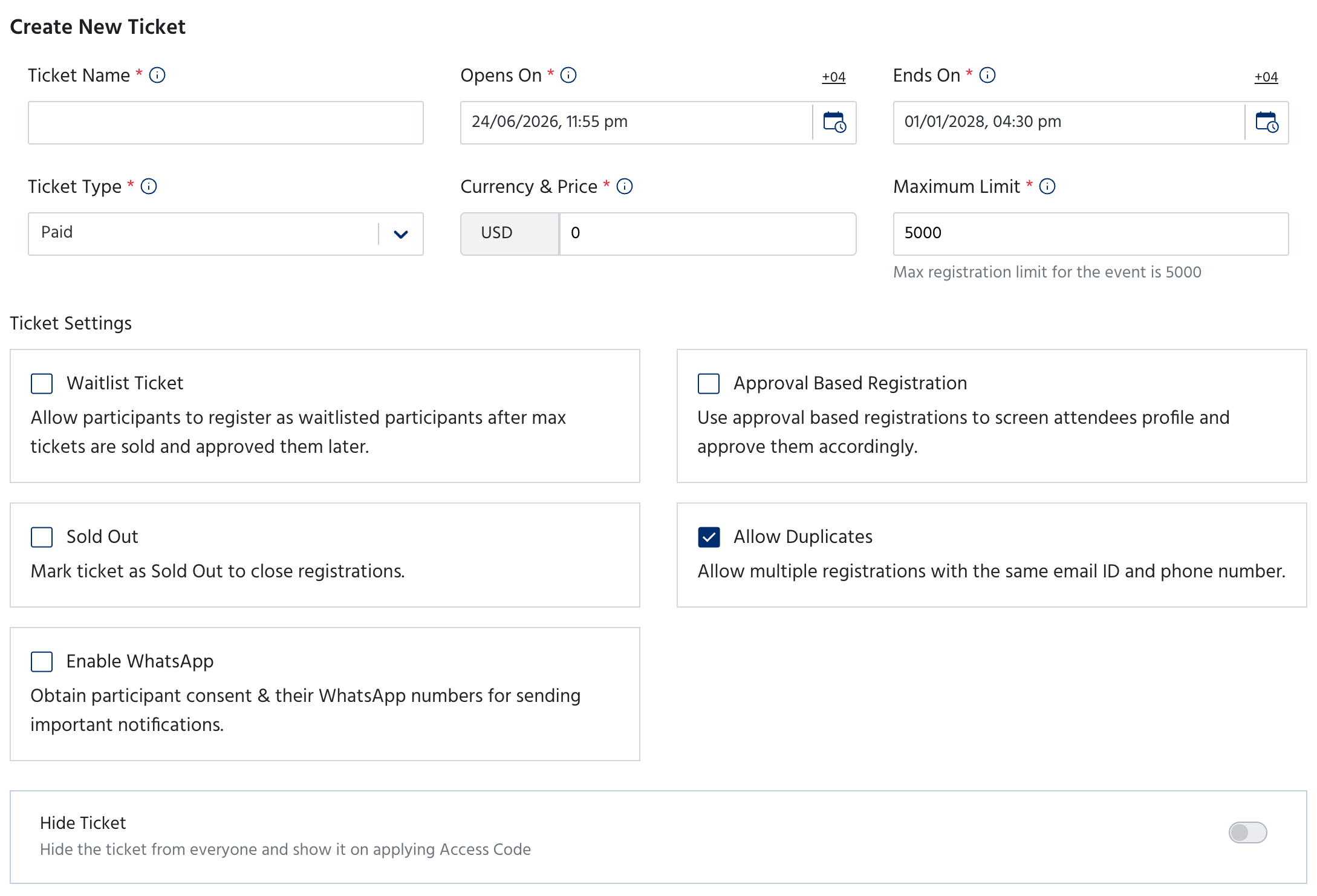 ### Basic Details
| Field | Description |
| -------------------- | ------------------------------------------------------------------------------------------------------ |
| **Ticket Name** | The name of the ticket as attendees will see it on the event page |
| **Opens On** | The date and time from which registrations open for this ticket |
| **Ends On** | The date and time after which registrations close for this ticket |
| **Ticket Type** | **Free**, **Paid**, or **Donation** |
| **Currency & Price** | The currency (inherited from event settings) and the ticket price |
| **Maximum Limit** | The maximum number of registrations for this ticket — capped at the event's overall registration limit |
### Ticket Settings
| Setting | Description |
| ------------------------------- | ------------------------------------------------------------------------------------------------- |
| **Waitlist Ticket** | Allow participants to join a waitlist after the ticket sells out — you can approve them later |
| **Approval Based Registration** | Screen attendee profiles and manually approve or reject each registration |
| **Sold Out** | Mark the ticket as sold out immediately to stop new registrations |
| **Allow Duplicates** | Allow multiple registrations using the same email ID and phone number |
| **Enable WhatsApp** | Collect attendee WhatsApp consent and numbers for sending event notifications |
| **Hide Ticket** | Hide the ticket from the public event page — visible only when an attendee applies an Access Code |
### Basic Details
| Field | Description |
| -------------------- | ------------------------------------------------------------------------------------------------------ |
| **Ticket Name** | The name of the ticket as attendees will see it on the event page |
| **Opens On** | The date and time from which registrations open for this ticket |
| **Ends On** | The date and time after which registrations close for this ticket |
| **Ticket Type** | **Free**, **Paid**, or **Donation** |
| **Currency & Price** | The currency (inherited from event settings) and the ticket price |
| **Maximum Limit** | The maximum number of registrations for this ticket — capped at the event's overall registration limit |
### Ticket Settings
| Setting | Description |
| ------------------------------- | ------------------------------------------------------------------------------------------------- |
| **Waitlist Ticket** | Allow participants to join a waitlist after the ticket sells out — you can approve them later |
| **Approval Based Registration** | Screen attendee profiles and manually approve or reject each registration |
| **Sold Out** | Mark the ticket as sold out immediately to stop new registrations |
| **Allow Duplicates** | Allow multiple registrations using the same email ID and phone number |
| **Enable WhatsApp** | Collect attendee WhatsApp consent and numbers for sending event notifications |
| **Hide Ticket** | Hide the ticket from the public event page — visible only when an attendee applies an Access Code |
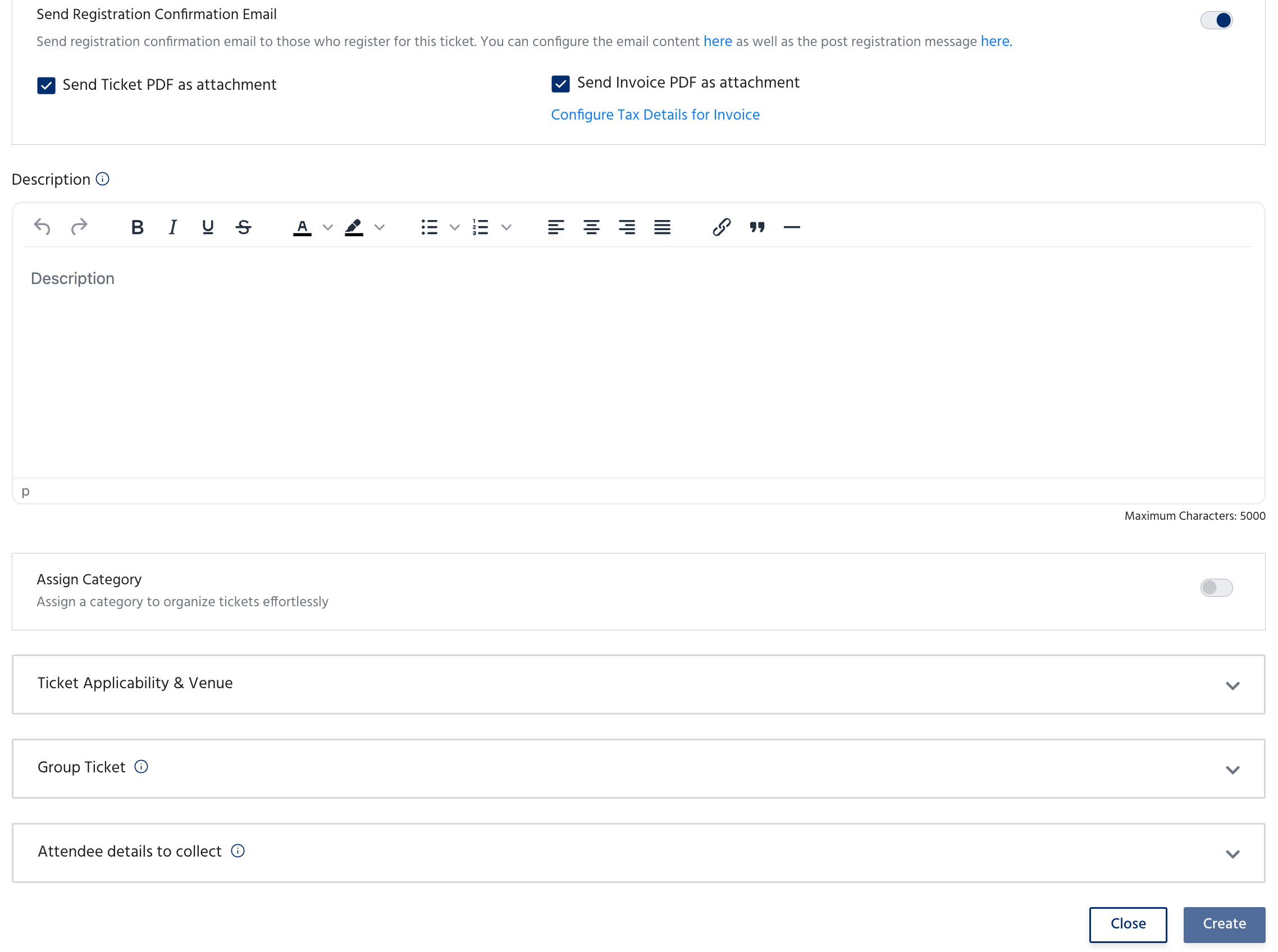 ### Registration Confirmation Email
Toggle **Send Registration Confirmation Email** to automatically send a confirmation email to attendees when they register for this ticket. Once enabled, you can also:
* Check **Send Ticket PDF as attachment** to include the ticket in the email
* Check **Send Invoice PDF as attachment** to include an invoice — click **Configure Tax Details for Invoice** to set up your tax information
### Description
Add an optional rich text description for the ticket — up to 5,000 characters. This appears on the event page to help attendees understand what the ticket includes.
### Additional Options
| Option | Description |
| -------------------------------- | ------------------------------------------------------------------------------------- |
| **Assign Category** | Toggle on to assign this ticket to a category for organised display on the event page |
| **Ticket Applicability & Venue** | Specify which sessions, days, or venues this ticket grants access to |
| **Group Ticket** | Enable to allow a single registration to cover multiple attendees under one ticket |
| **Attendee Details to Collect** | Choose which attendee information fields to collect specifically for this ticket type |
Click **Create** to save the ticket, or **Close** to discard.
***
## Creating a Ticket Category
Click **Create Category** to group related tickets together. Categories are displayed as named sections on the event page and checkout page, making it easier for attendees to find the right ticket.
### Registration Confirmation Email
Toggle **Send Registration Confirmation Email** to automatically send a confirmation email to attendees when they register for this ticket. Once enabled, you can also:
* Check **Send Ticket PDF as attachment** to include the ticket in the email
* Check **Send Invoice PDF as attachment** to include an invoice — click **Configure Tax Details for Invoice** to set up your tax information
### Description
Add an optional rich text description for the ticket — up to 5,000 characters. This appears on the event page to help attendees understand what the ticket includes.
### Additional Options
| Option | Description |
| -------------------------------- | ------------------------------------------------------------------------------------- |
| **Assign Category** | Toggle on to assign this ticket to a category for organised display on the event page |
| **Ticket Applicability & Venue** | Specify which sessions, days, or venues this ticket grants access to |
| **Group Ticket** | Enable to allow a single registration to cover multiple attendees under one ticket |
| **Attendee Details to Collect** | Choose which attendee information fields to collect specifically for this ticket type |
Click **Create** to save the ticket, or **Close** to discard.
***
## Creating a Ticket Category
Click **Create Category** to group related tickets together. Categories are displayed as named sections on the event page and checkout page, making it easier for attendees to find the right ticket.
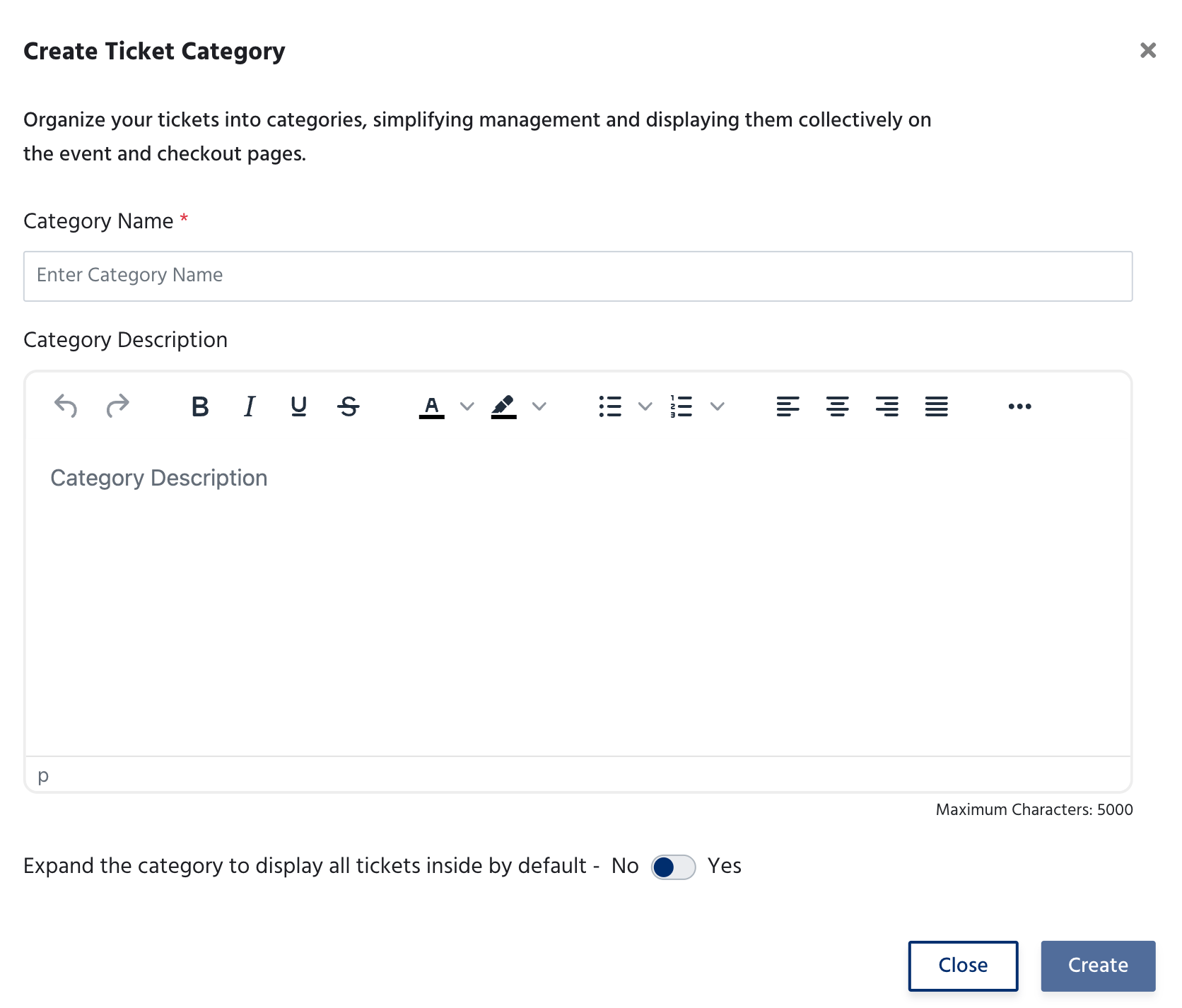 | Field | Description |
| ------------------------------ | -------------------------------------------------------------------------------------------------------------------------------- |
| **Category Name** | The name of the category shown on the event page |
| **Category Description** | An optional rich text description for the category — up to 5,000 characters |
| **Expand category by default** | When set to Yes, all tickets in this category are shown expanded on the event page without attendees needing to click to open it |
Click **Create** to save the category, or **Close** to discard. Once created, you can assign tickets to it during ticket creation or by editing an existing ticket.
***
## Ticket Settings Tab
The Ticket Settings tab contains event-wide registration controls that apply across all tickets.
| Field | Description |
| ------------------------------ | -------------------------------------------------------------------------------------------------------------------------------- |
| **Category Name** | The name of the category shown on the event page |
| **Category Description** | An optional rich text description for the category — up to 5,000 characters |
| **Expand category by default** | When set to Yes, all tickets in this category are shown expanded on the event page without attendees needing to click to open it |
Click **Create** to save the category, or **Close** to discard. Once created, you can assign tickets to it during ticket creation or by editing an existing ticket.
***
## Ticket Settings Tab
The Ticket Settings tab contains event-wide registration controls that apply across all tickets.
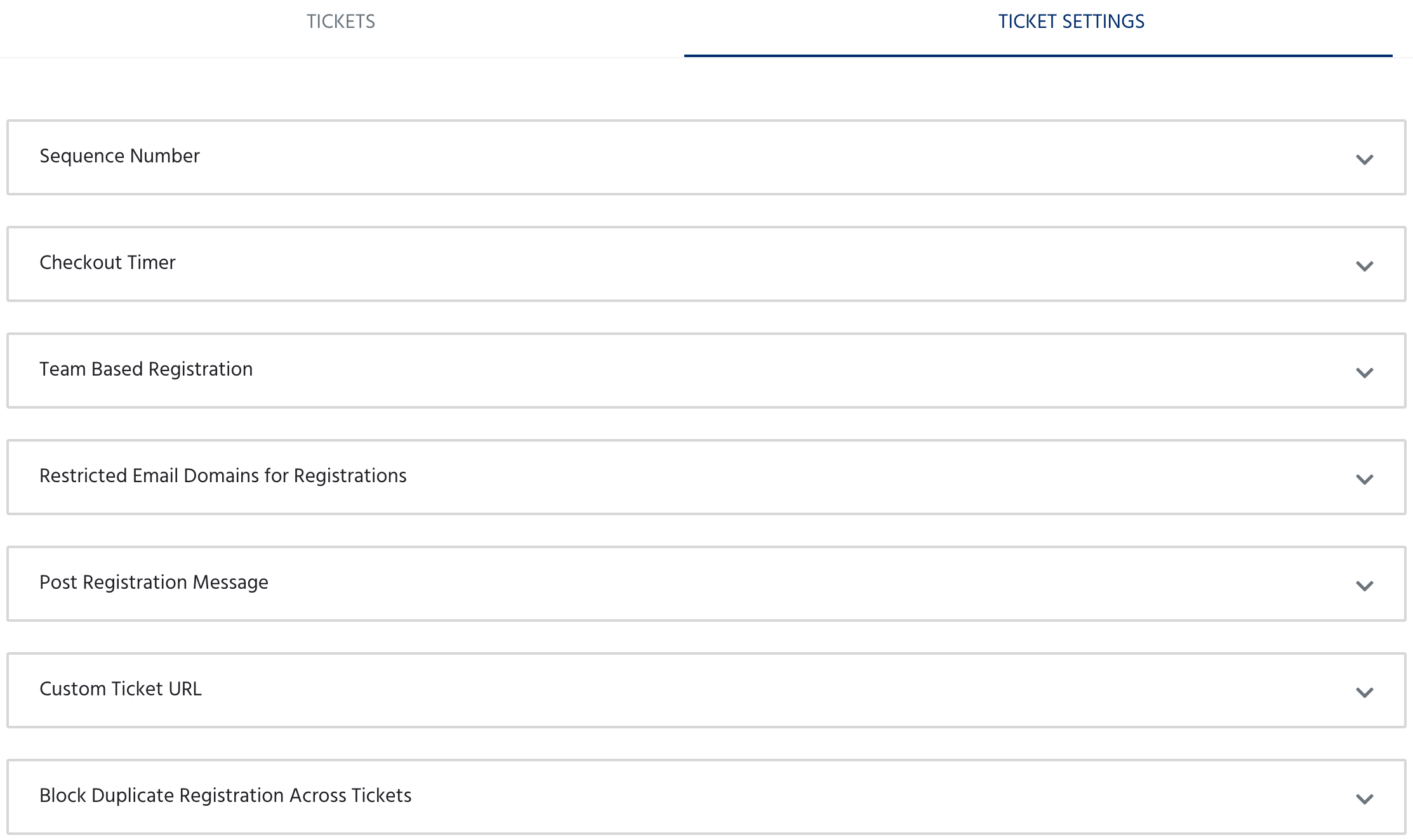 | Setting | Description |
| ----------------------------------------------- | ---------------------------------------------------------------------------------------------------- |
| **Sequence Number** | Configure how attendee sequence or bib numbers are assigned — useful for marathons and sports events |
| **Checkout Timer** | Set a time limit for attendees to complete payment before their slot is released back |
| **Team Based Registration** | Enable team registrations where one person registers on behalf of a group |
| **Restricted Email Domains for Registrations** | Limit registrations to specific email domains — useful for internal or corporate events |
| **Post Registration Message** | Customise the message attendees see on screen immediately after completing registration |
| **Custom Ticket URL** | Set a custom redirect URL for the ticket checkout page |
| **Block Duplicate Registration Across Tickets** | Prevent the same attendee from registering for more than one ticket type in the same event |
Each setting is expandable - click on it to configure the details.
***
## Next Steps
Customise the registration form attendees fill out when signing up.
Create discount codes and promotional coupons for your tickets.
| Setting | Description |
| ----------------------------------------------- | ---------------------------------------------------------------------------------------------------- |
| **Sequence Number** | Configure how attendee sequence or bib numbers are assigned — useful for marathons and sports events |
| **Checkout Timer** | Set a time limit for attendees to complete payment before their slot is released back |
| **Team Based Registration** | Enable team registrations where one person registers on behalf of a group |
| **Restricted Email Domains for Registrations** | Limit registrations to specific email domains — useful for internal or corporate events |
| **Post Registration Message** | Customise the message attendees see on screen immediately after completing registration |
| **Custom Ticket URL** | Set a custom redirect URL for the ticket checkout page |
| **Block Duplicate Registration Across Tickets** | Prevent the same attendee from registering for more than one ticket type in the same event |
Each setting is expandable - click on it to configure the details.
***
## Next Steps
Customise the registration form attendees fill out when signing up.
Create discount codes and promotional coupons for your tickets.