> ## Documentation Index
> Fetch the complete documentation index at: https://help.konfhub.com/llms.txt
> Use this file to discover all available pages before exploring further.
# Workshops
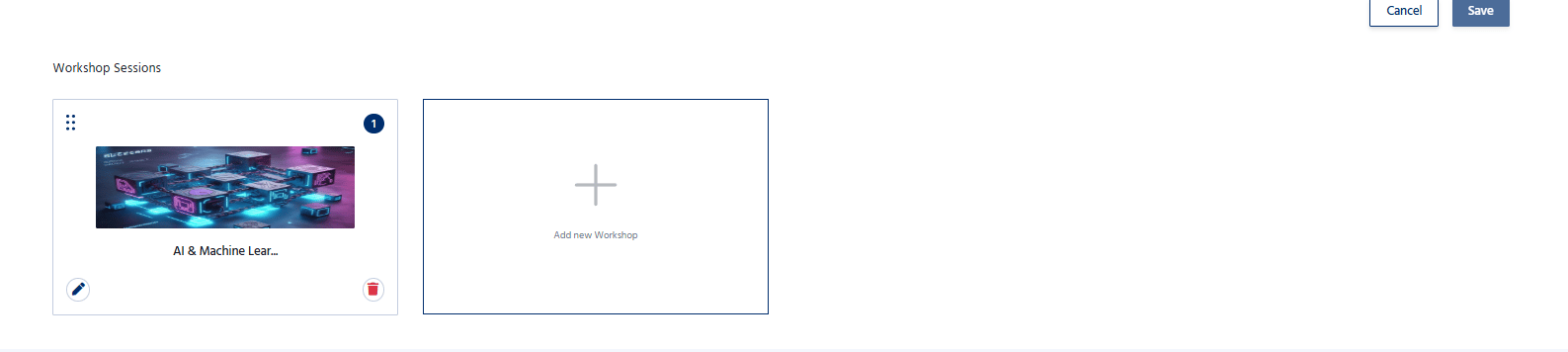
The **Workshops** section allows organizers to create and manage workshops associated with an event. Organizers can provide detailed information about each workshop, including its schedule, speakers, capacity, and registration details, enabling attendees to view and register for workshop sessions.
 ## Add a Workshop
To create a new workshop:
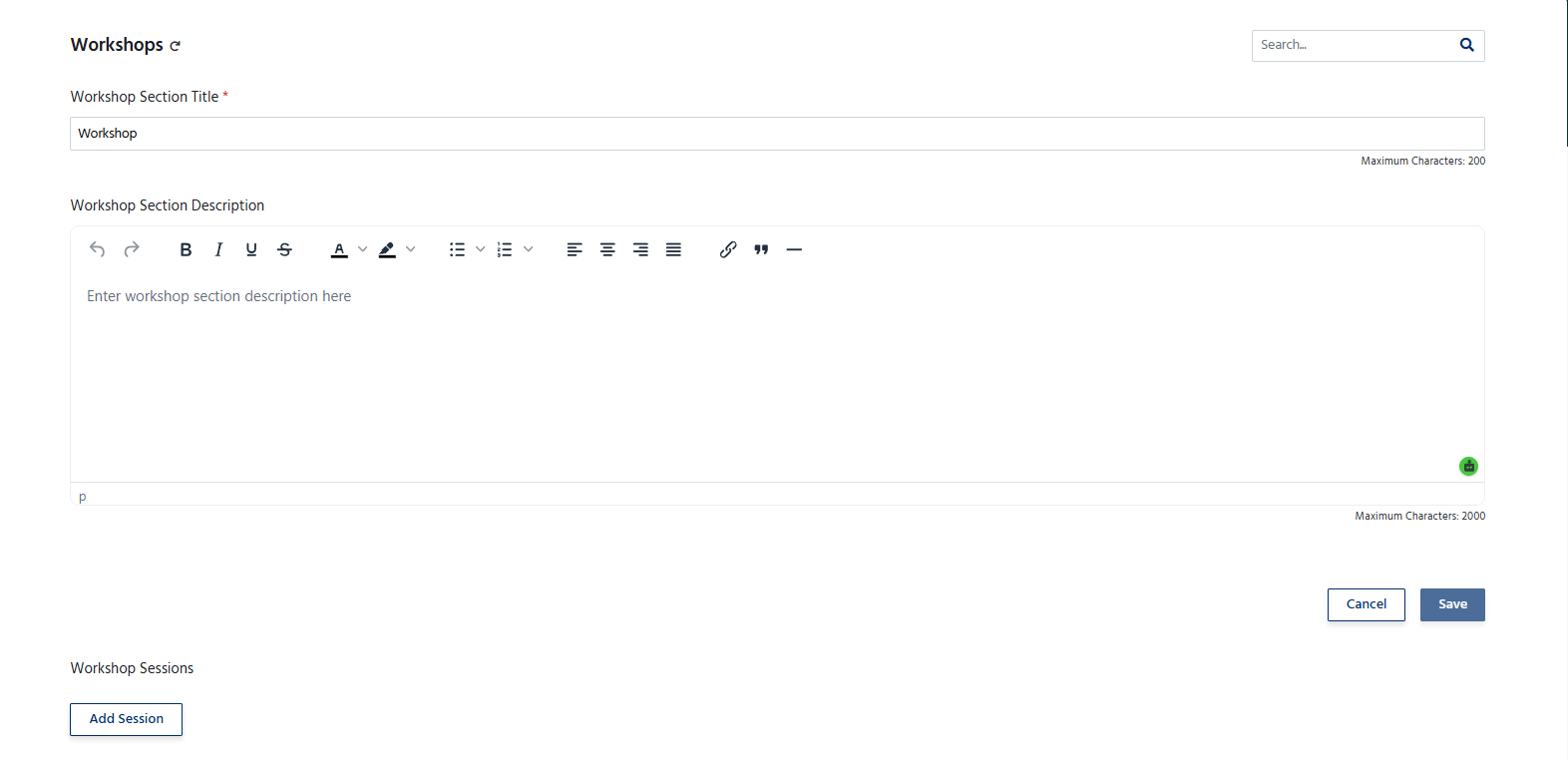
1. Navigate to the **Workshops** section.
2. Click **Add Workshop**.
3. Enter the workshop details, including:
* **Workshop Title** – The name of the workshop.
* **Description** – A brief overview of the workshop and its objectives.
* **Date** – Select the workshop date.
* **Start Time** and **End Time** – Specify the workshop schedule.
* **Venue/Location** – Enter the workshop location or virtual meeting details.
## Add a Workshop
To create a new workshop:
1. Navigate to the **Workshops** section.
2. Click **Add Workshop**.
3. Enter the workshop details, including:
* **Workshop Title** – The name of the workshop.
* **Description** – A brief overview of the workshop and its objectives.
* **Date** – Select the workshop date.
* **Start Time** and **End Time** – Specify the workshop schedule.
* **Venue/Location** – Enter the workshop location or virtual meeting details.
 4. **Speaker/Instructor** – Assign the workshop facilitator or speaker.
5. Click **Save** to add the workshop.
## Manage Workshops
The Workshops section allows organizers to:
* Add multiple workshops for an event.
* Edit workshop details at any time.
* Update schedules, speakers, or venue information.
* Remove workshops that are no longer required.
* Manage participant registration for individual workshops.
*
4. **Speaker/Instructor** – Assign the workshop facilitator or speaker.
5. Click **Save** to add the workshop.
## Manage Workshops
The Workshops section allows organizers to:
* Add multiple workshops for an event.
* Edit workshop details at any time.
* Update schedules, speakers, or venue information.
* Remove workshops that are no longer required.
* Manage participant registration for individual workshops.
*