> ## Documentation Index
> Fetch the complete documentation index at: https://help.konfhub.com/llms.txt
> Use this file to discover all available pages before exploring further.
# Team Management: Invite Co-Organizers and Staff Roles
> Invite co-organizers, check-in staff, and volunteers to your KonfHub event. Manage roles and permissions so each team member has the right level of access.
Running a successful event almost always takes more than one person. KonfHub's Team section lets you invite colleagues, volunteers, and on-site staff to your event and assign each of them a specific role — so every person can do exactly what they need to do, and nothing more. Whether you have a core organizing committee of five or a check-in crew of fifty, you can manage everyone from a single dashboard view without sharing your account credentials.
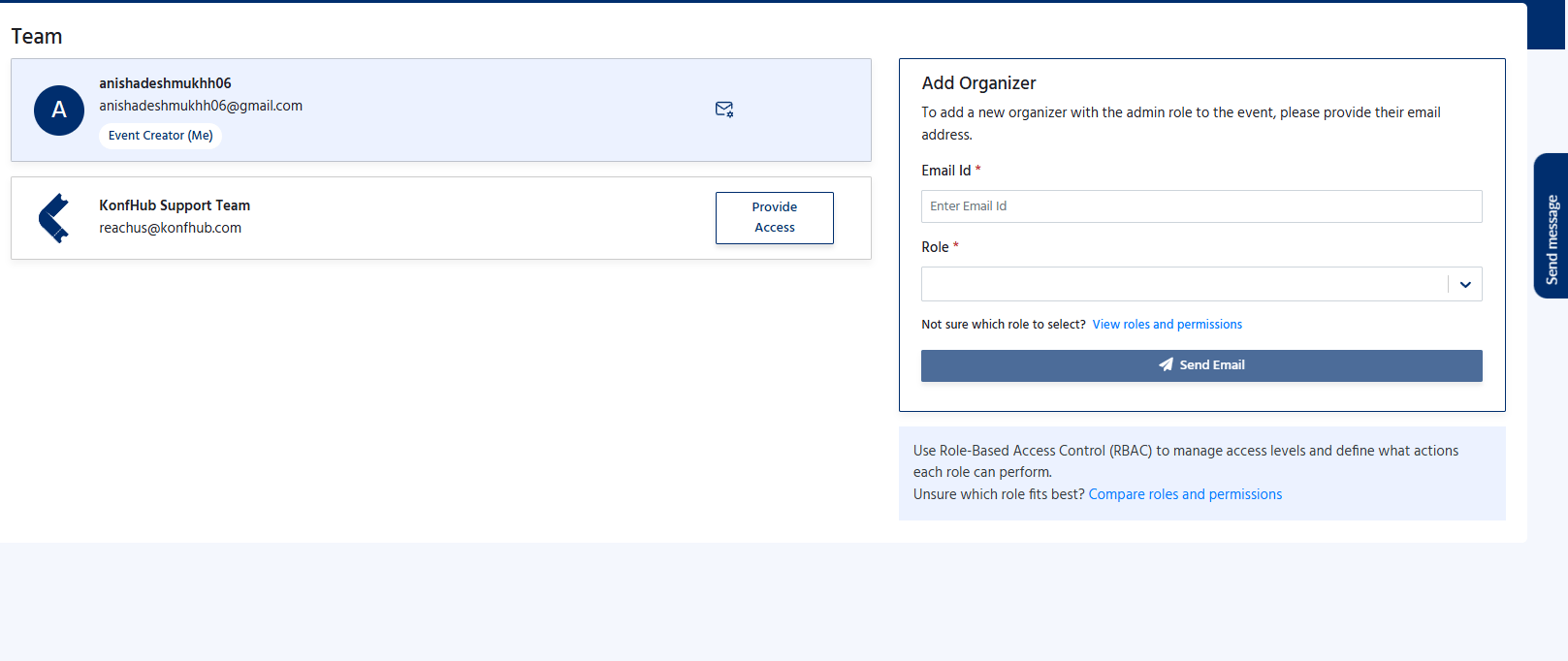 ## Why Team Management Matters
When you share login credentials with helpers, you lose visibility into who changed what and when. KonfHub's role-based access model solves this cleanly: each team member logs in with their own KonfHub account and sees only the parts of the dashboard that are relevant to their role. You stay in control; they stay focused.
Add several co-organizers who can edit event details, manage attendees, and configure settings alongside you.
Grant check-in staff and volunteers access only to the check-in app — not to sensitive financial or registration data.
Each action in the dashboard is tied to the individual account that performed it, making it easy to trace changes.
Issue event access codes that give temporary check-in app access without requiring a full team invitation.
## Roles and What They Can Do
KonfHub offers two layers of roles: **Dashboard Roles** for people who need to manage the event from the web dashboard, and **Check-In App Roles** for people who are only involved on the day of the event.
## Why Team Management Matters
When you share login credentials with helpers, you lose visibility into who changed what and when. KonfHub's role-based access model solves this cleanly: each team member logs in with their own KonfHub account and sees only the parts of the dashboard that are relevant to their role. You stay in control; they stay focused.
Add several co-organizers who can edit event details, manage attendees, and configure settings alongside you.
Grant check-in staff and volunteers access only to the check-in app — not to sensitive financial or registration data.
Each action in the dashboard is tied to the individual account that performed it, making it easy to trace changes.
Issue event access codes that give temporary check-in app access without requiring a full team invitation.
## Roles and What They Can Do
KonfHub offers two layers of roles: **Dashboard Roles** for people who need to manage the event from the web dashboard, and **Check-In App Roles** for people who are only involved on the day of the event.
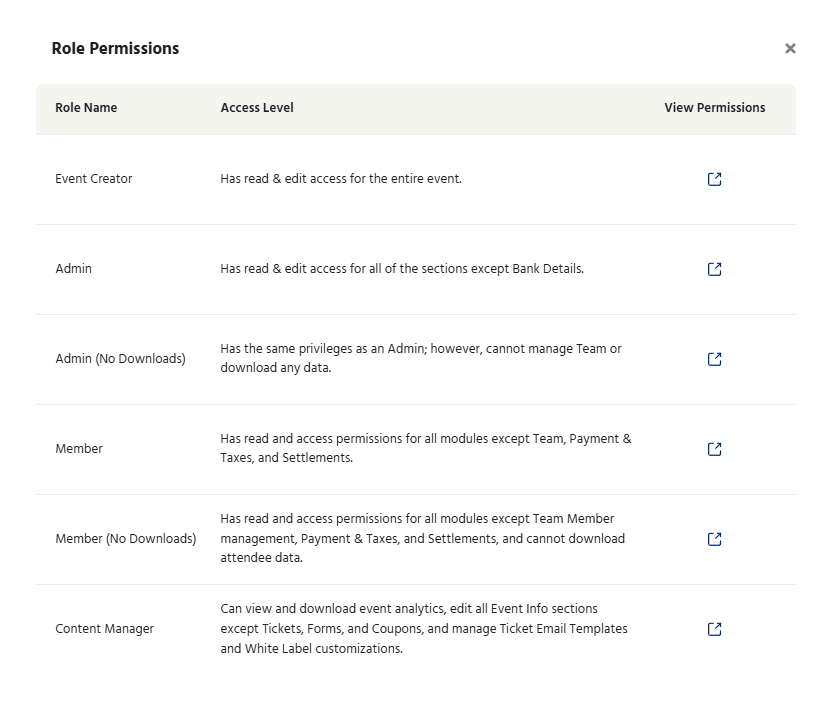 ### Dashboard Roles
The organizer is the account that created the event. They have unrestricted access to every section of the dashboard — event settings, ticketing, attendee management, communications, payments, analytics, team management, and advanced settings. There is always exactly one organizer per event.
### Dashboard Roles
The organizer is the account that created the event. They have unrestricted access to every section of the dashboard — event settings, ticketing, attendee management, communications, payments, analytics, team management, and advanced settings. There is always exactly one organizer per event.
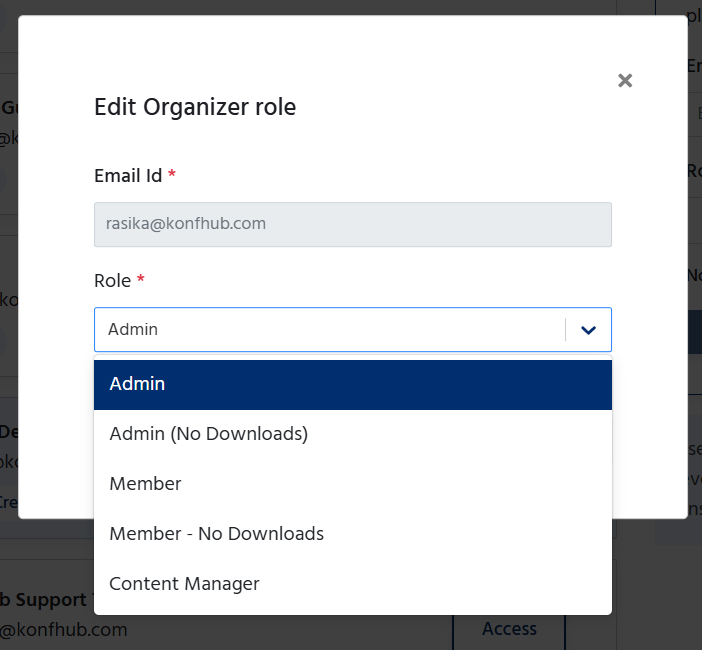
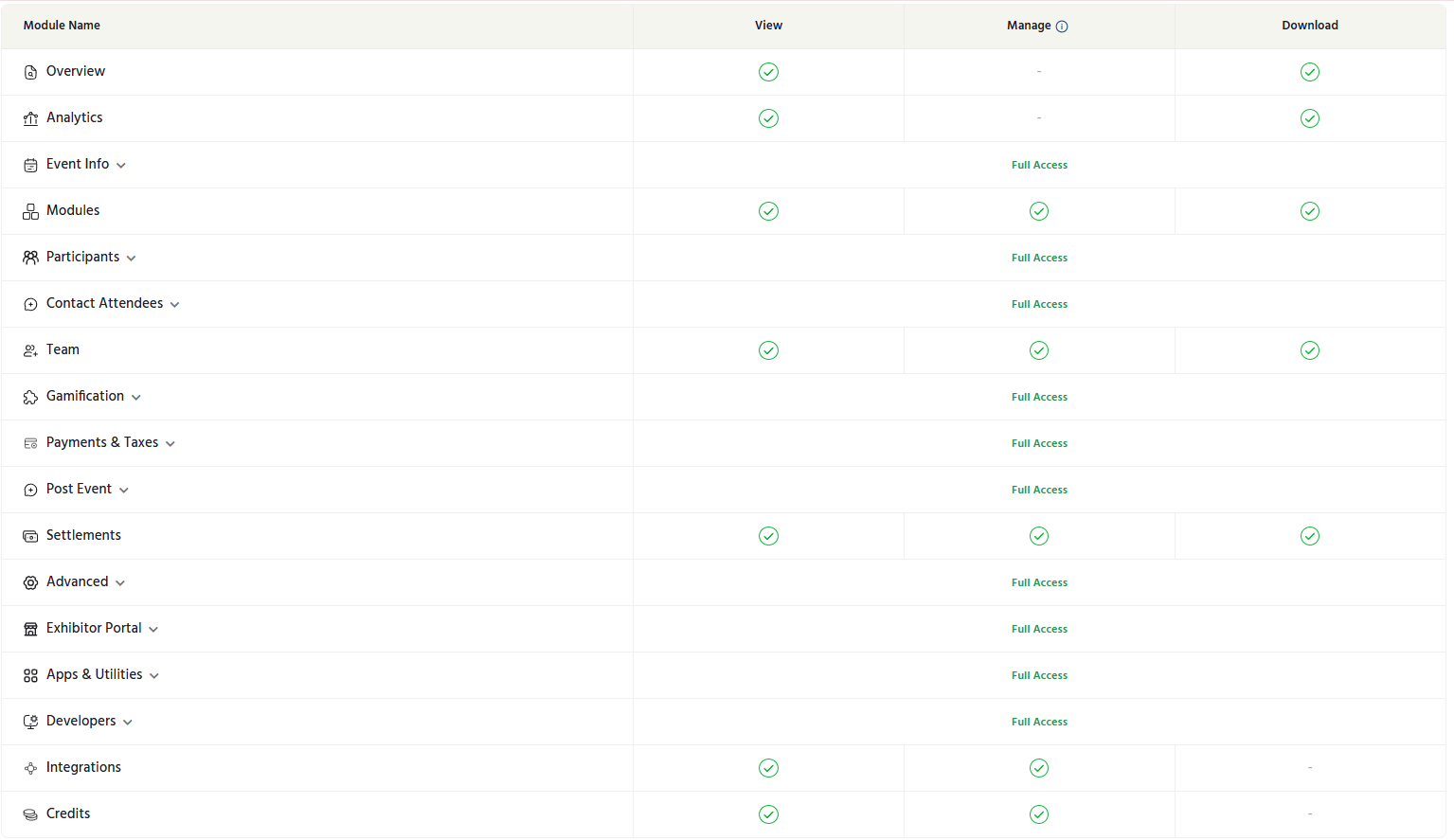 An admin has nearly the same permissions as the organizer. They can edit event details, manage tickets, view and export attendee lists, send campaigns, configure discount codes, and manage the rest of the team. Co-organizers **cannot** change payment or bank settlement details and cannot transfer ownership of the event.
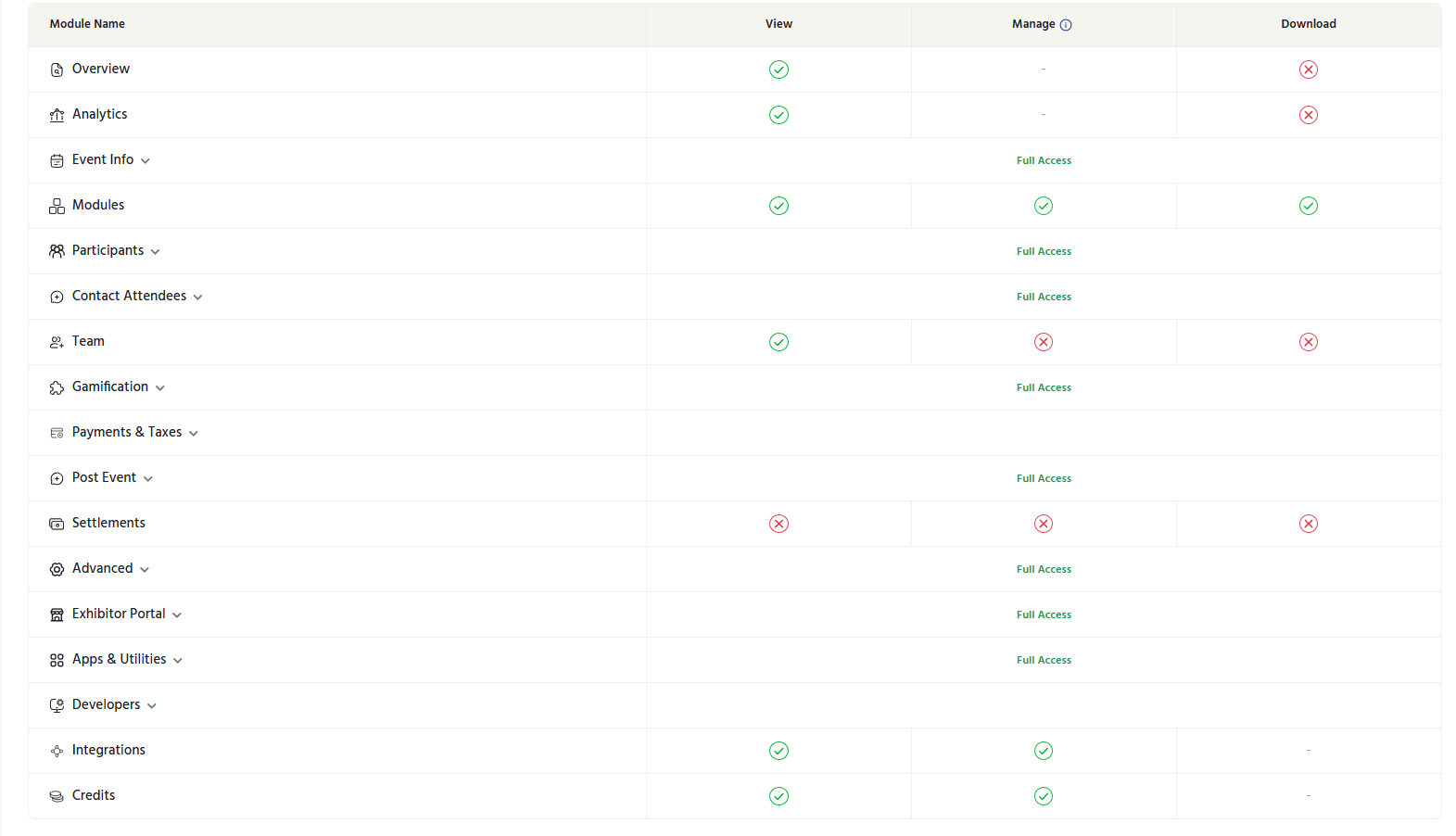
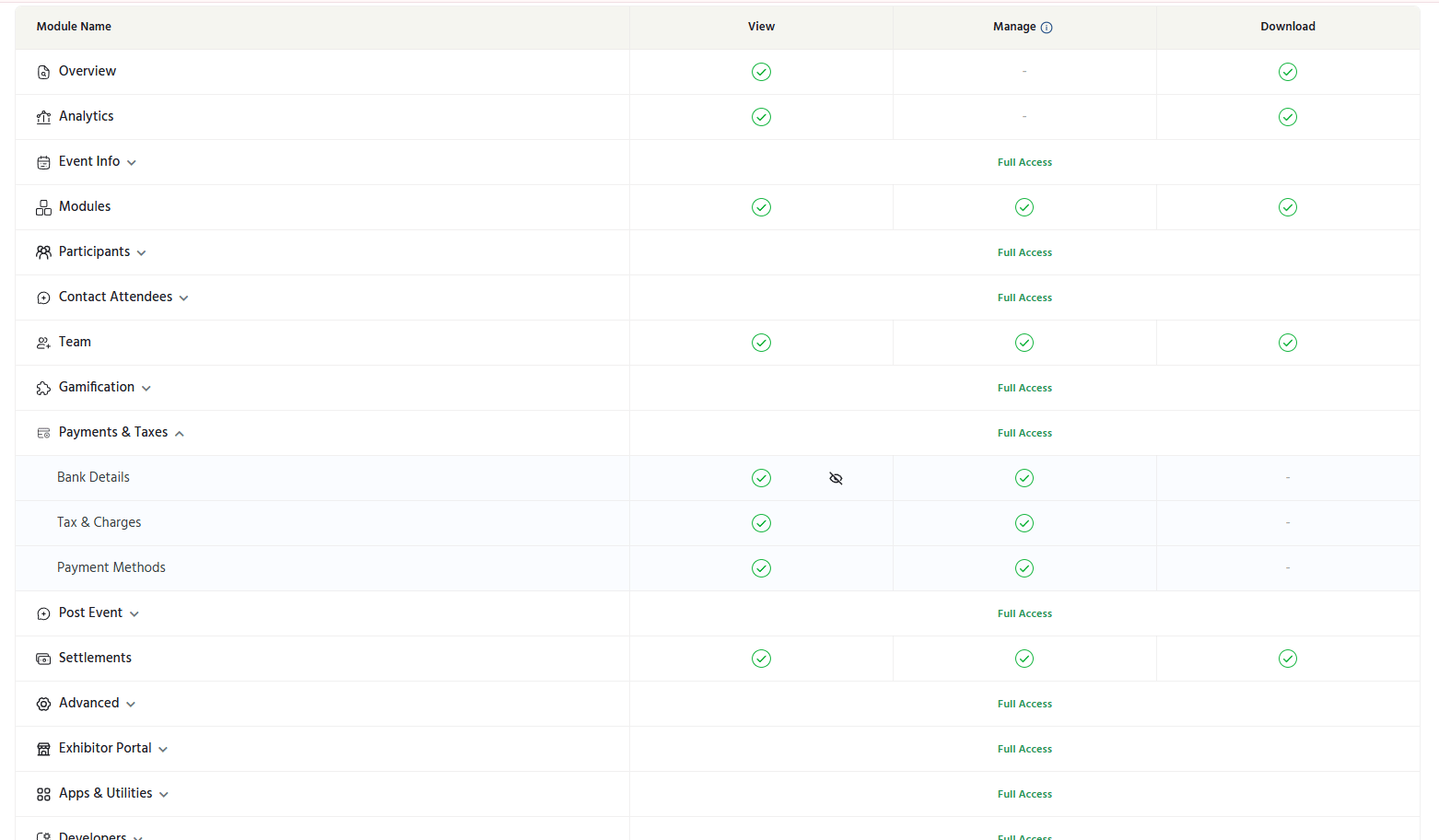 An Admin (No Downloads) has nearly the same permissions as the Admin. They can edit event details, manage tickets, view and export attendee lists, send campaigns, configure discount codes, and manage the rest of the team. They **cannot** change payment or bank settlement details and cannot transfer ownership of the event. However, cannot manage Team or download any data. \\
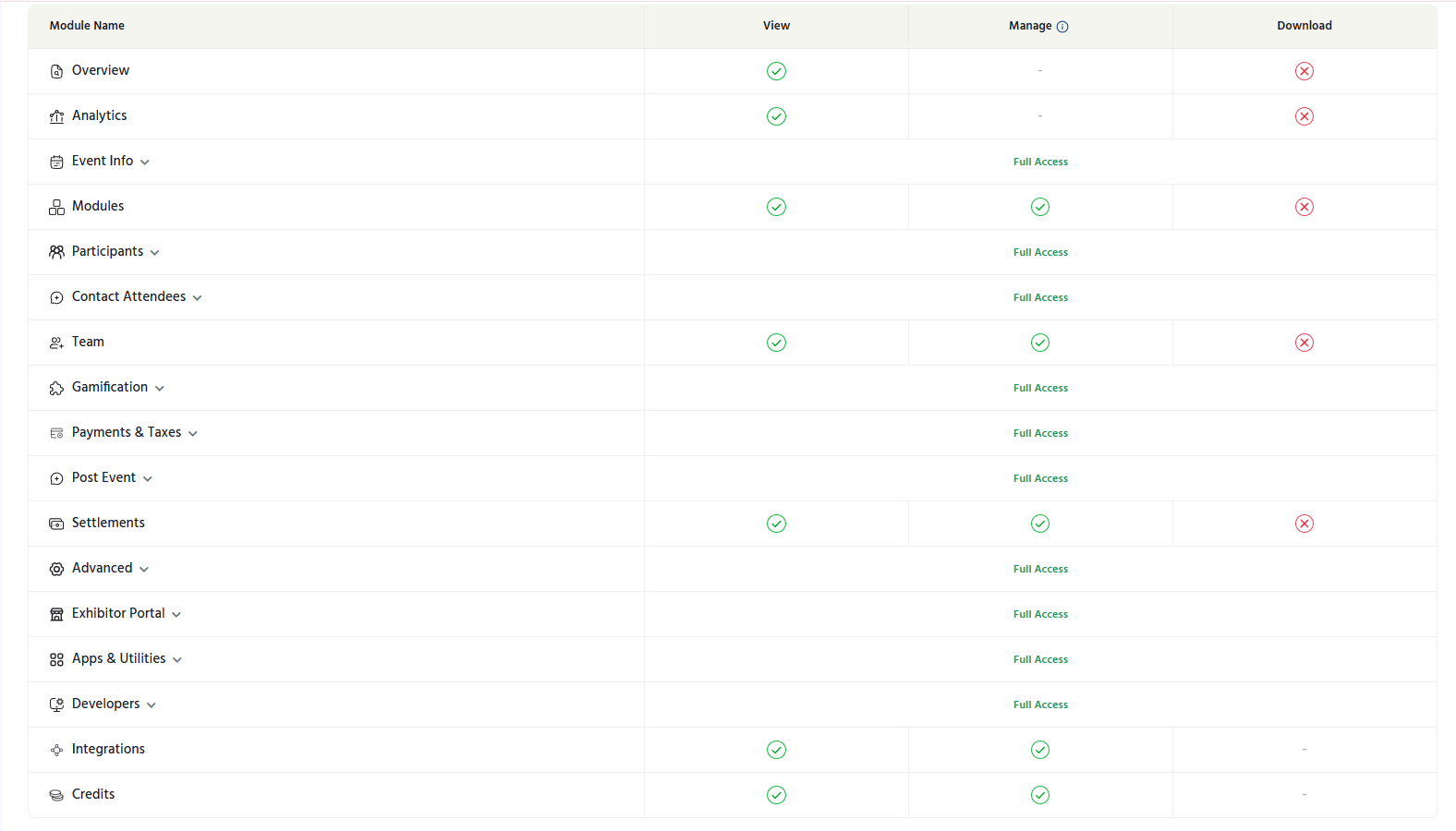 Has read and access permissions for all modules except Team, Payment & Taxes, and Settlements. \\
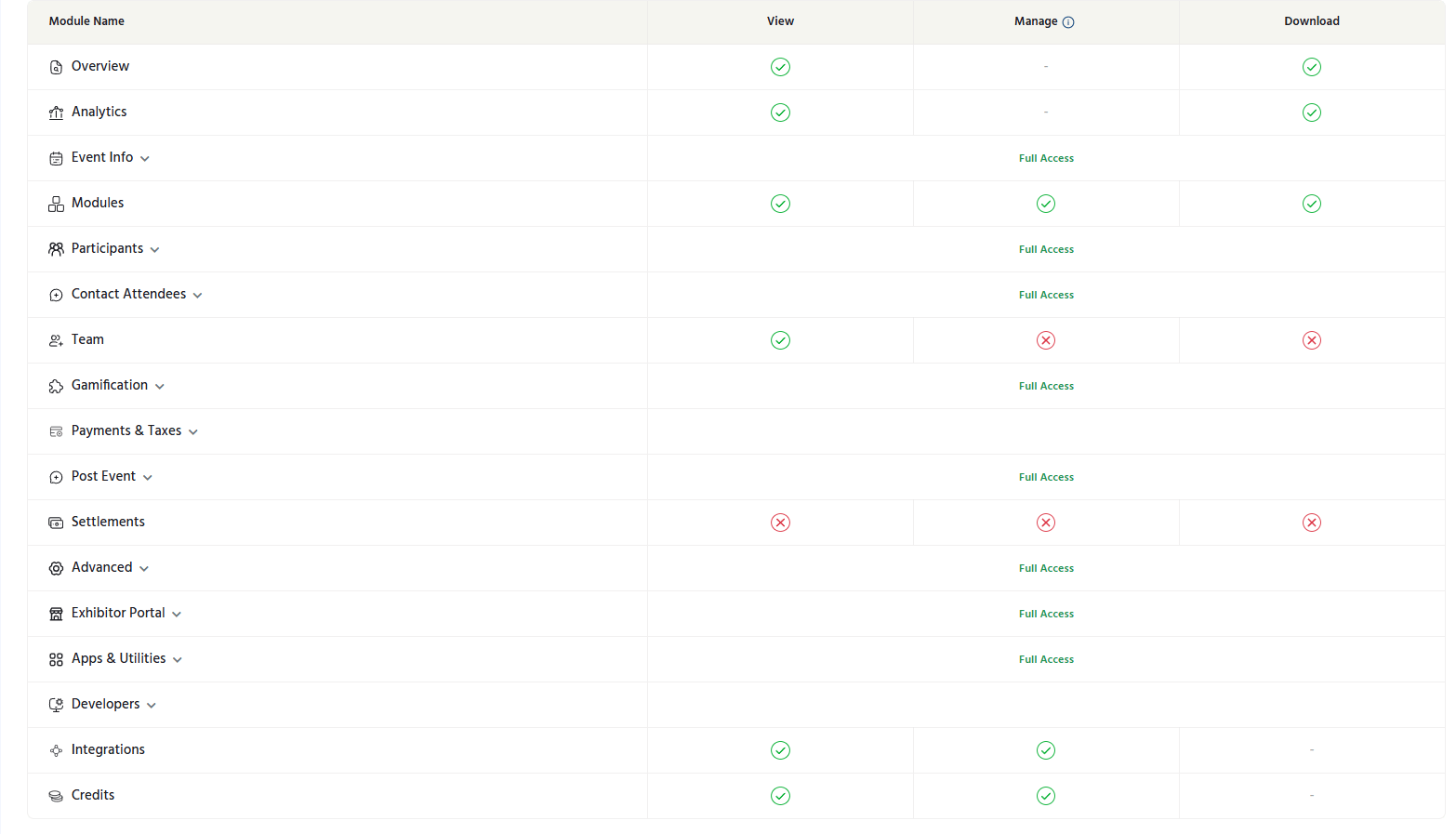 Has read and access permissions for all modules except Team Member management, Payment & Taxes, and Settlements, but cannot download attendee data. \\
 ## Inviting Team Members
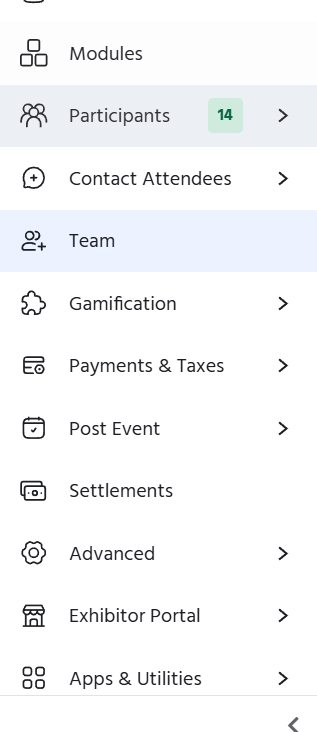
In your event dashboard, click **Team** in the left-hand navigation menu.
## Inviting Team Members
In your event dashboard, click **Team** in the left-hand navigation menu.
 Type the email address of the person you want to invite. They must have (or create) a KonfHub account using that email address.
Choose the appropriate role from the dropdown — **Co-Organizer**, **Check-In Staff**, or **Volunteer** — based on the level of access the person requires.
Type the email address of the person you want to invite. They must have (or create) a KonfHub account using that email address.
Choose the appropriate role from the dropdown — **Co-Organizer**, **Check-In Staff**, or **Volunteer** — based on the level of access the person requires.
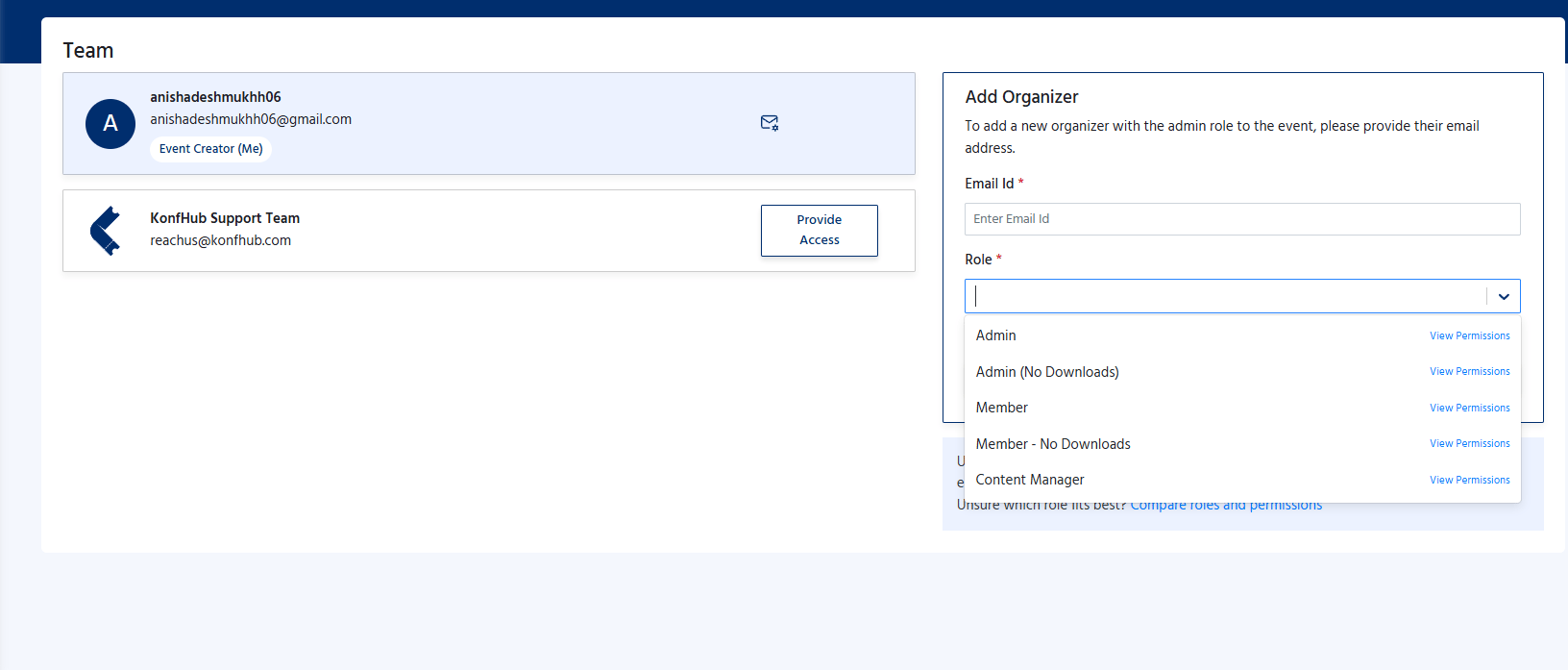 Click **Send Invite**. KonfHub emails the invitation to the recipient. Once they accept, they will see the event in their KonfHub dashboard with access scoped to their assigned role.
Send invitations a few days before the event so team members have time to accept and familiarise themselves with the tools. For large on-site crews, consider using Event Access Codes instead — they require no individual invitation workflow.
## Managing Existing Team Members
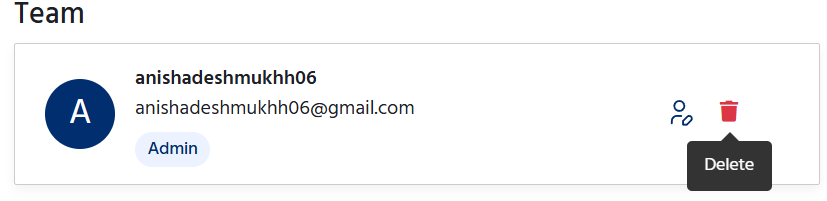
After inviting team members, your Team section displays a list of everyone with access to the event, along with their role and invitation status. From this list you can:
* **Transfer a membership** — You can transfer the membership to someone you want to transfer by clicking on transfer membership.
Click **Send Invite**. KonfHub emails the invitation to the recipient. Once they accept, they will see the event in their KonfHub dashboard with access scoped to their assigned role.
Send invitations a few days before the event so team members have time to accept and familiarise themselves with the tools. For large on-site crews, consider using Event Access Codes instead — they require no individual invitation workflow.
## Managing Existing Team Members
After inviting team members, your Team section displays a list of everyone with access to the event, along with their role and invitation status. From this list you can:
* **Transfer a membership** — You can transfer the membership to someone you want to transfer by clicking on transfer membership.
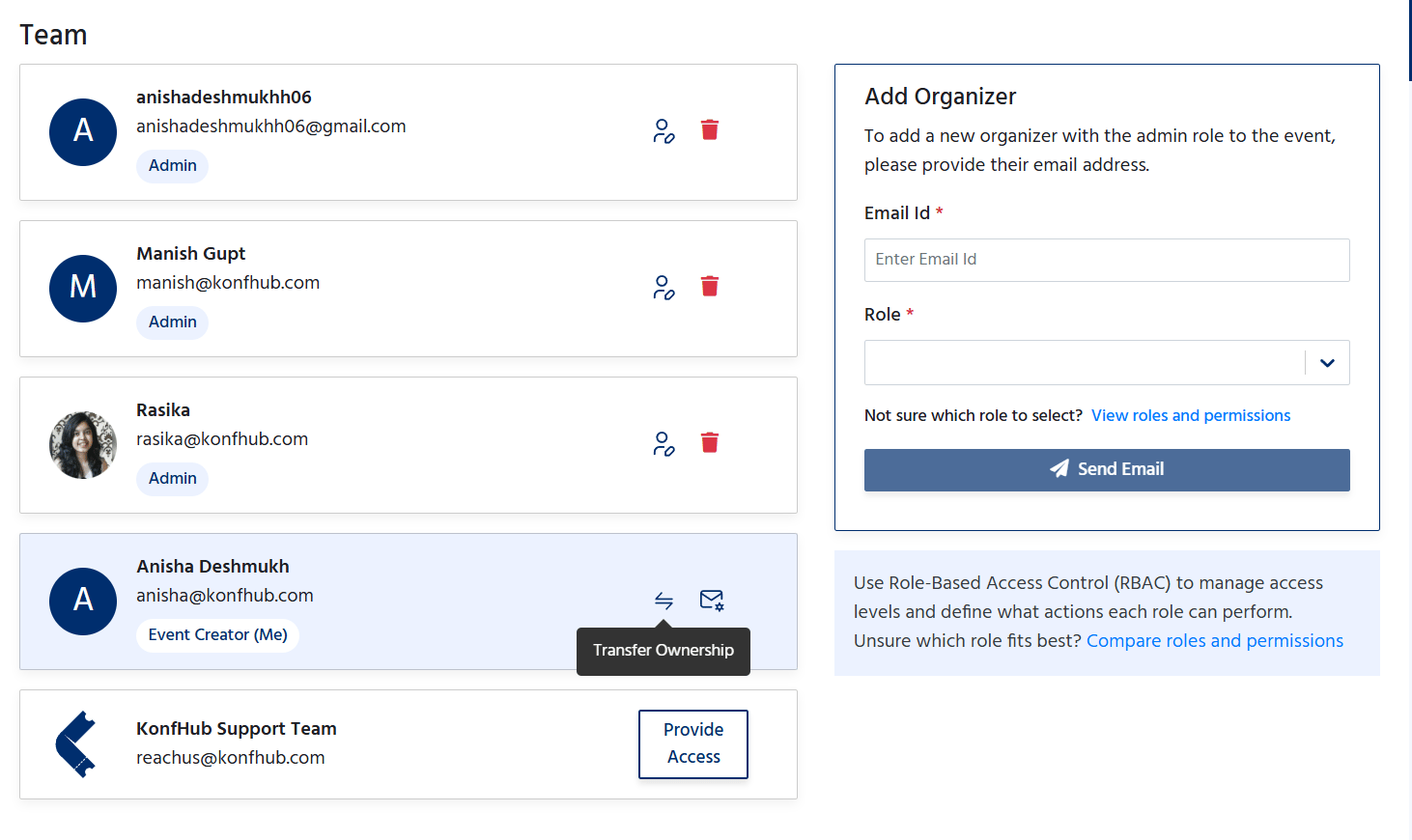 * **Change a member's role:** Click on the edit option and you can change the a member's role.
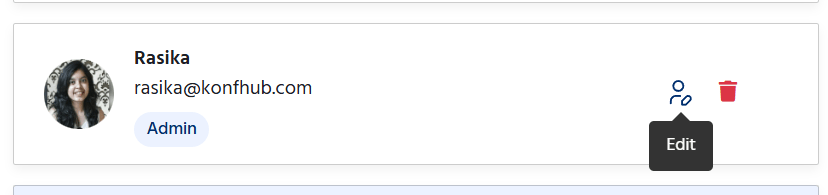
 * **Remove a member** — click the remove icon next to a team member to revoke their access immediately. They will no longer be able to view or interact with the event.
 Adding an team member make the email id is already signed up on Konfhub ; They should have a account.