> ## Documentation Index
> Fetch the complete documentation index at: https://help.konfhub.com/llms.txt
> Use this file to discover all available pages before exploring further.
# Connect Your Payment Gateway
> Connect your own payment gateway to receive ticket payments directly to your account.
For organisers outside India, KonfHub does not collect payments on your behalf. Instead, you connect your own payment gateway and all settlements go directly to your connected account.
Navigate to **Event Dashboard → Payments & Taxes → Connect your PG** to set this up.
Only the creator of the event can connect or disconnect payment gateways.
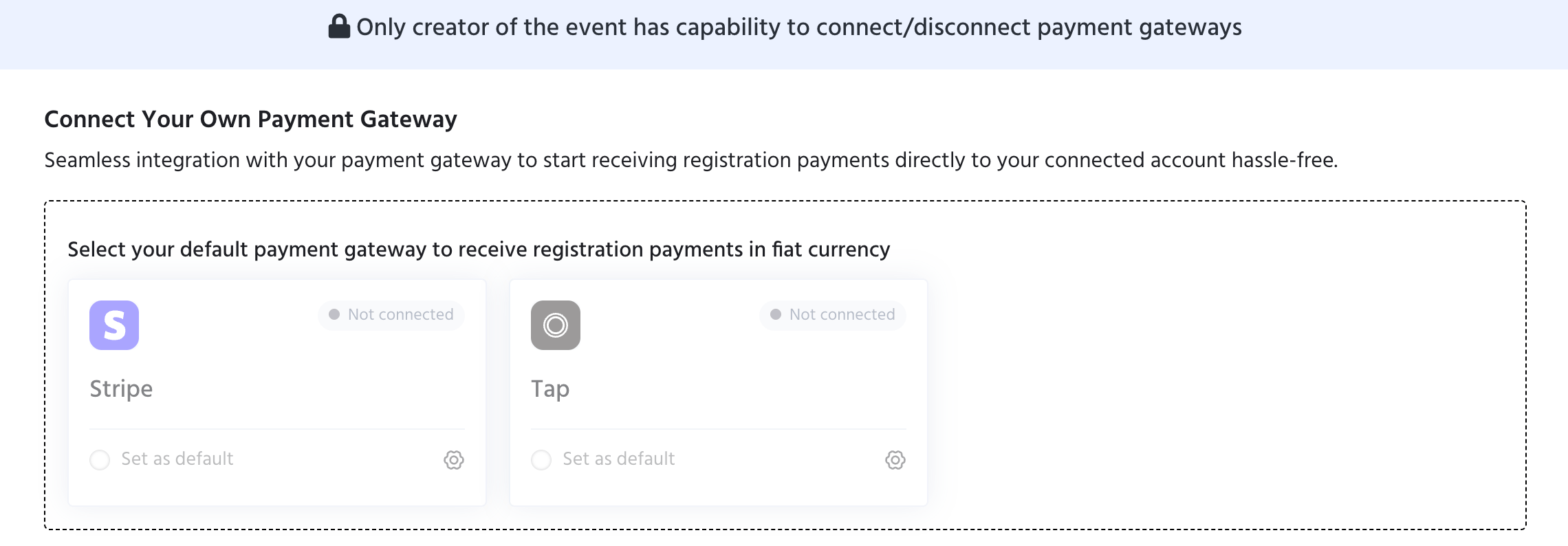 ## Supported Payment Gateways
| Gateway | Best For |
| ---------- | ----------------------------------------------------------- |
| **Stripe** | Global card payments - connect your existing Stripe account |
| **Tap** | Middle East region payments |
## How to Connect
1. Click the **settings icon** on the gateway you want to connect
2. Follow the prompts to link your existing account
3. Once connected, select **Set as default** to make it the primary gateway for your event
You can connect both gateways and switch between them, but only one can be set as default at a time.
Configure tax collection and processing fee settings for your event.
## Supported Payment Gateways
| Gateway | Best For |
| ---------- | ----------------------------------------------------------- |
| **Stripe** | Global card payments - connect your existing Stripe account |
| **Tap** | Middle East region payments |
## How to Connect
1. Click the **settings icon** on the gateway you want to connect
2. Follow the prompts to link your existing account
3. Once connected, select **Set as default** to make it the primary gateway for your event
You can connect both gateways and switch between them, but only one can be set as default at a time.
Configure tax collection and processing fee settings for your event.