Viewing and Searching Registrations
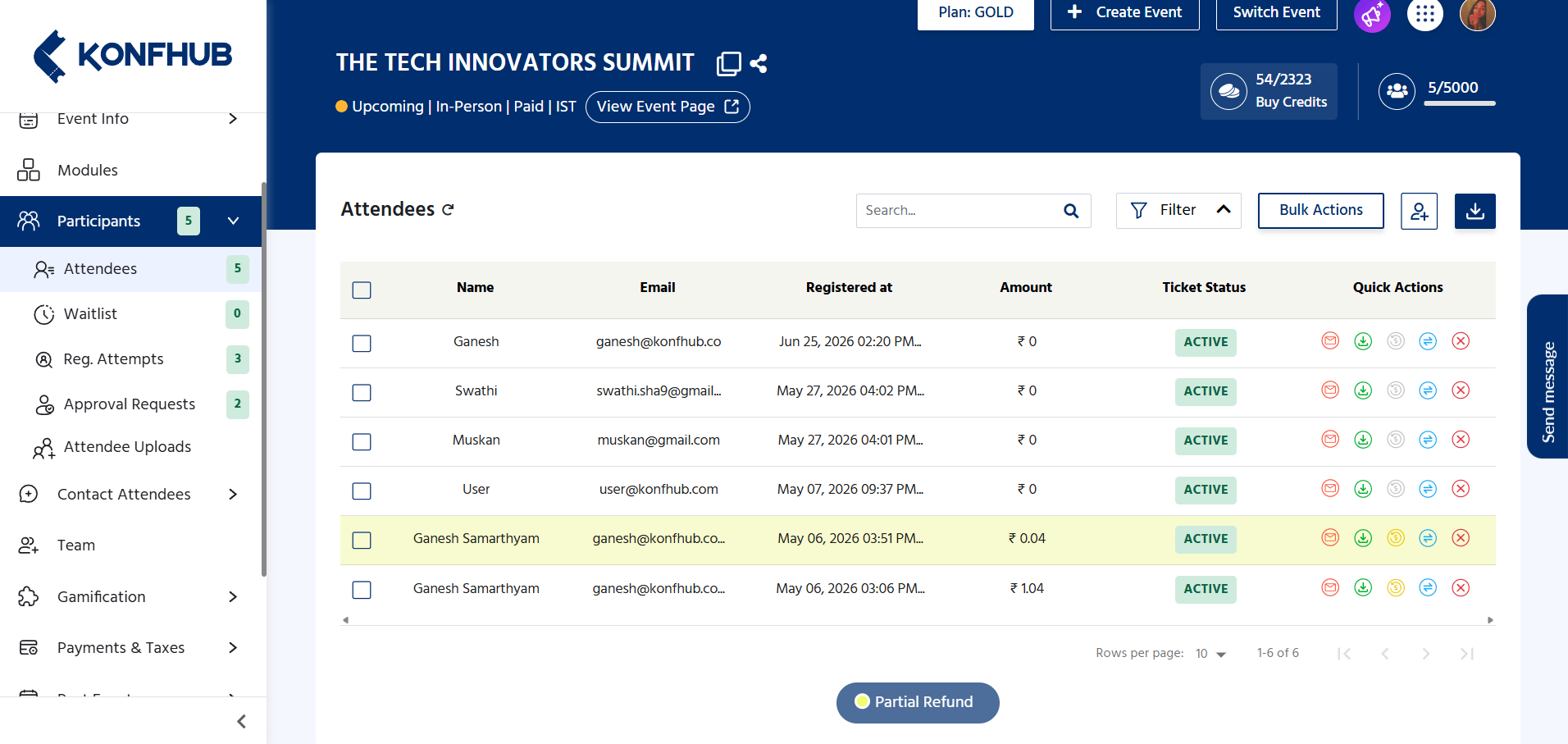
When you open the Participants section, you see a paginated table of all confirmed registrations. Each row shows the attendee’s name, email address, ticket type, registration date, payment status, and ticket delivery status.
Search
Use the search bar at the top of the table to find a specific attendee by:- Full name or partial name
- Email address
- Ticket or order reference number
Filters
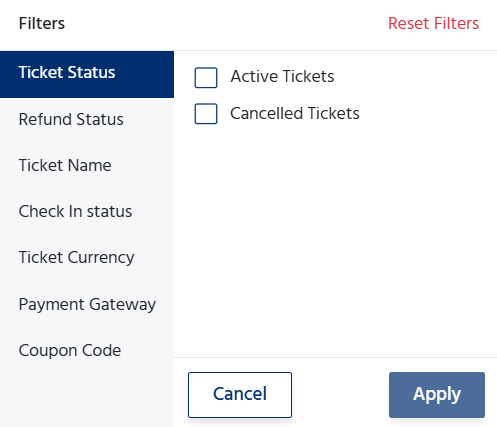
Apply one or more filters to narrow the list to a specific subset of attendees:Ticket Type
Show only attendees who registered for a particular ticket tier — useful when you need to communicate with VIP ticket holders separately from general admission.
Registration Status
Filter by Confirmed, Pending Approval, Waitlisted, Cancelled, or Rejected to focus on a specific group that requires action.
Payment Status
Distinguish between paid and free registrations, or identify any payments that are pending or failed.
Date Range
View only registrations that occurred within a specific date window — helpful for analyzing the impact of a recent marketing campaign.
Approving and Rejecting Waitlisted Attendees
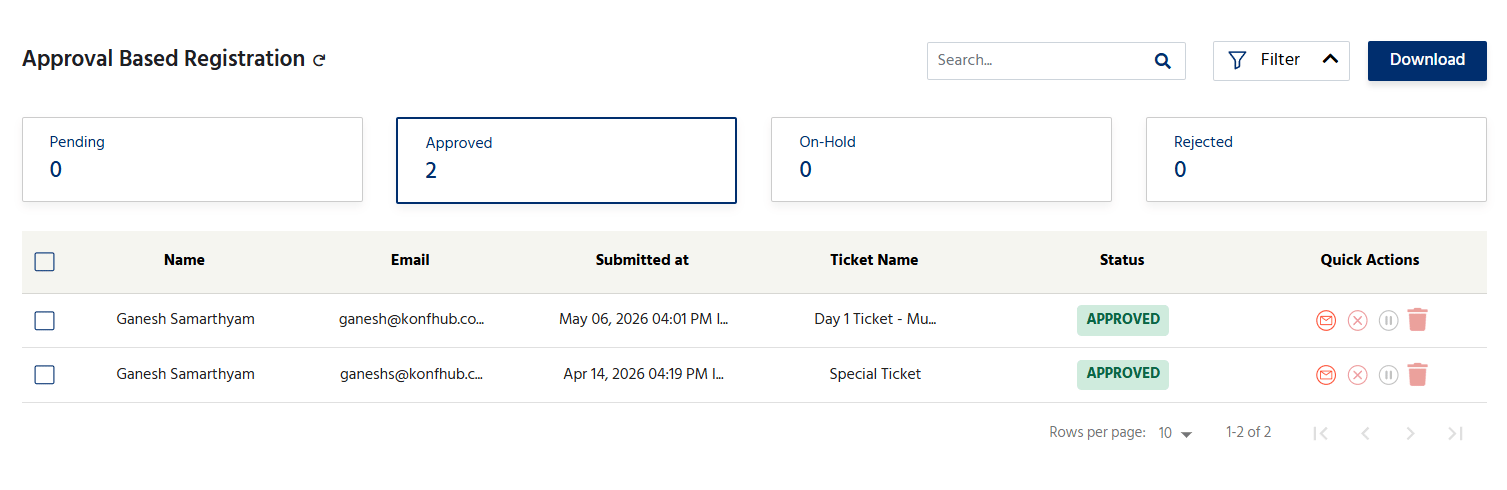
If your event uses approval-based registration (Silver plan and above), incoming registration requests land in a Pending Approval state rather than being immediately confirmed. The Participants section is where you review and act on these requests.1
Filter by Pending Approval
In the Participants table, set the status filter to Pending Approval to see all outstanding requests.
2
Review the Attendee's Details
Click the attendee’s name or row to expand their registration details, including all answers they provided in your registration form.
3
Take Action
Select one of three actions:
- Approve — The attendee immediately receives a confirmation email with their ticket and QR code.
- Reject — The attendee is notified that their registration was not approved. They do not receive a ticket.
- Hold — The request remains in a pending state while you gather more information or await a decision.
4
Bulk Approve (Optional)
If you want to approve multiple pending requests at once, select them using the checkboxes and use the Bulk Action menu to approve all selected attendees simultaneously.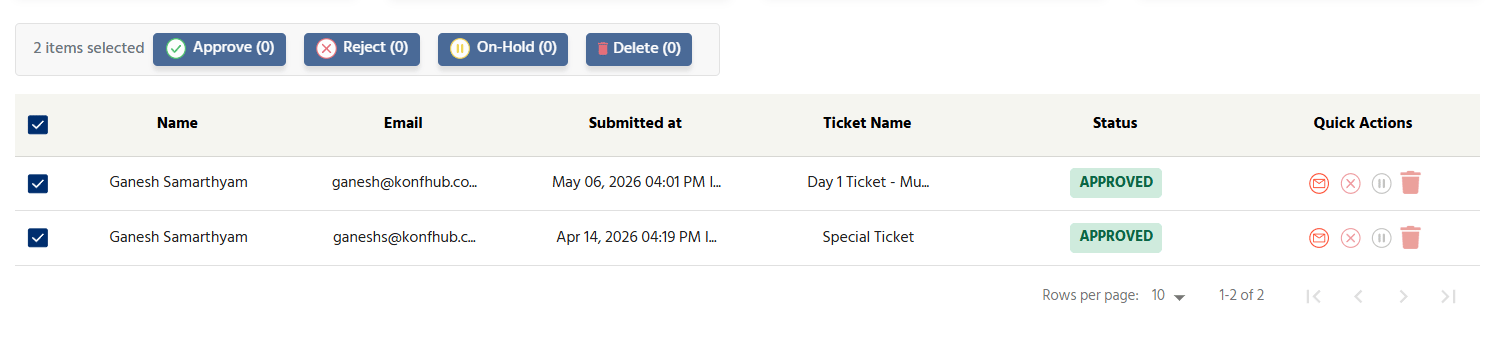
Transferring Tickets
Ticket transfers allow you, as the organizer, to reassign an existing registration from one person to another. This is useful when an attendee can no longer attend and wants a colleague or friend to take their place.1
Locate the Attendee
Search for the attendee whose ticket needs to be transferred.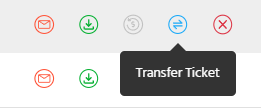
2
Select Transfer Ticket
Click Transfer Ticket and enter the new attendee’s name and email address and then click on Save.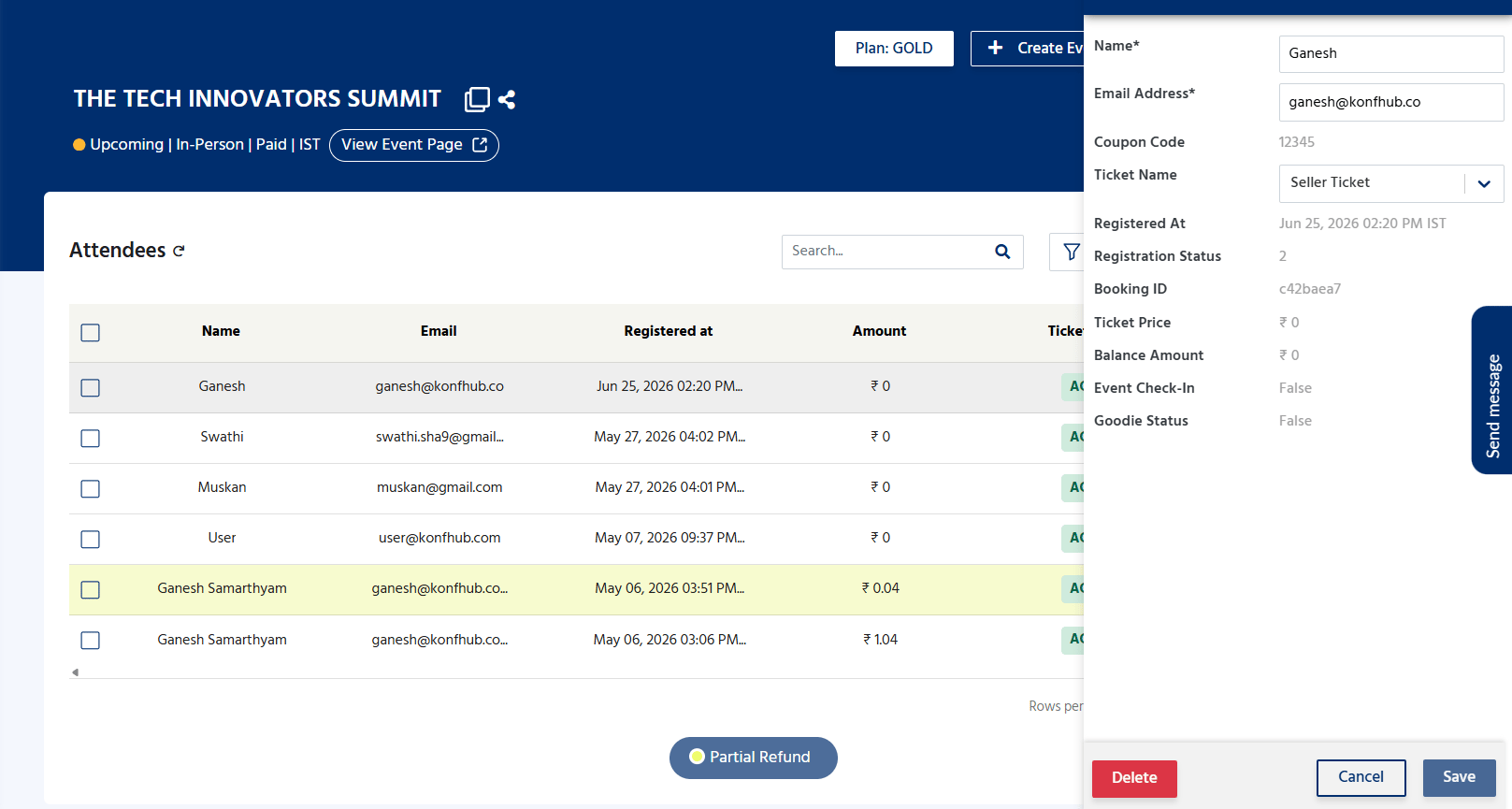
3
Notify Attendees of Changes
This gives organizers the option to decide whether an email notification should be sent to the attendee.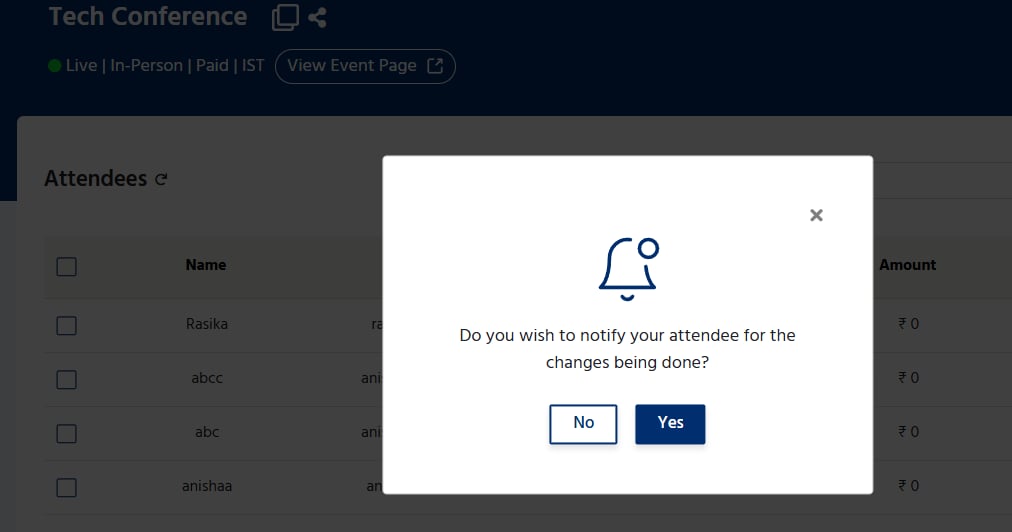
4
Confirm the Transfer
Review the details and confirm. The original attendee’s ticket is cancelled, and a new ticket is generated and emailed to the new attendee.
Processing Cancellations and Refunds
You can cancel any individual registration directly from the Participants table. For paid tickets, you can also initiate a refund back to the attendee’s original payment method.1
Find the Attendee to Cancel
Search for the attendee by name or email.
2
Click on Cancel in Quick Action Menu
Click Actions in the attendee’s row and select Cancel Registration.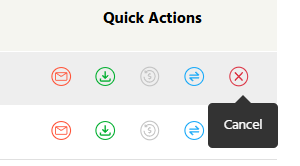
3
Choose Refund Option
If the ticket was paid, choose whether to issue a full refund, partial refund, or no refund based on your event’s cancellation policy.
4
Confirm Cancellation
Confirm the action. KonfHub cancels the ticket and — if a refund was selected — initiates the refund process back to the original payment method.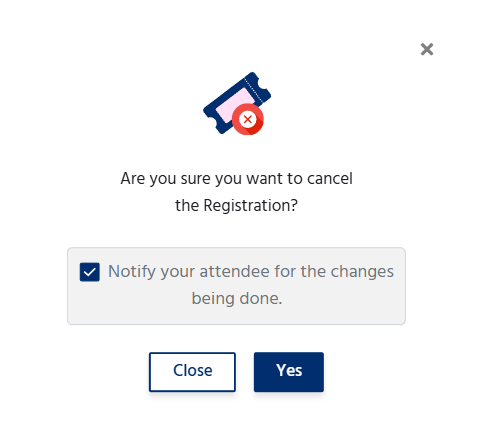
Refunds are processed through the original payment gateway and typically take 5–10 business days to appear in the attendee’s account, depending on the payment method used.
Editing Attendee Details
If an attendee made a typo in their name or needs to update a form field response, you can edit their details directly from the Participants table without requiring them to re-register.1
Locate the Attendee
Find the attendee using the search bar or scroll through the list.
2
Click Edit
Click the Edit icon or select Edit Details from the Actions menu.
3
Update the Fields
Modify the attendee’s name, email, phone number, or any custom registration form responses as needed.
4
Save Changes
Click Save. The updated details are reflected immediately in the dashboard and in any future attendee downloads.
Bulk Attendee Actions
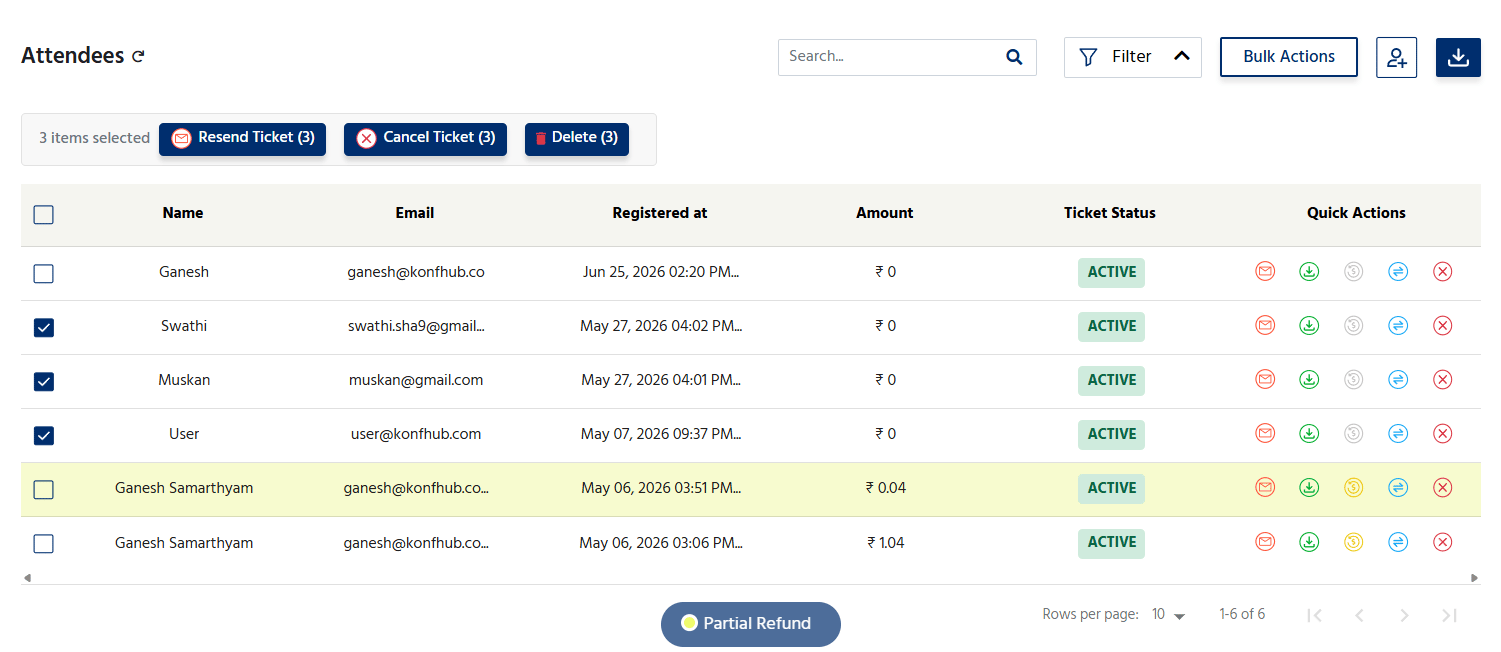
For large-scale operations, the bulk action feature saves significant time. Select multiple attendees using the row checkboxes and apply an action to all of them at once. Supported bulk actions include:- Bulk Approve — Approve all selected pending/waitlisted requests simultaneously.
- Bulk Cancel — Cancel multiple registrations in a single action.
- Bulk Resend Tickets — Resend ticket confirmation emails to a selected group (e.g., if your initial email bounced for a batch of attendees).
- Bulk Forward Invoice — Email invoices to a selected group of paid attendees.
Bulk Uploading Attendees
If you have a pre-existing list of attendees — from a partner organization, a previous platform, or a manual registration process — you can import them in bulk rather than entering each one individually.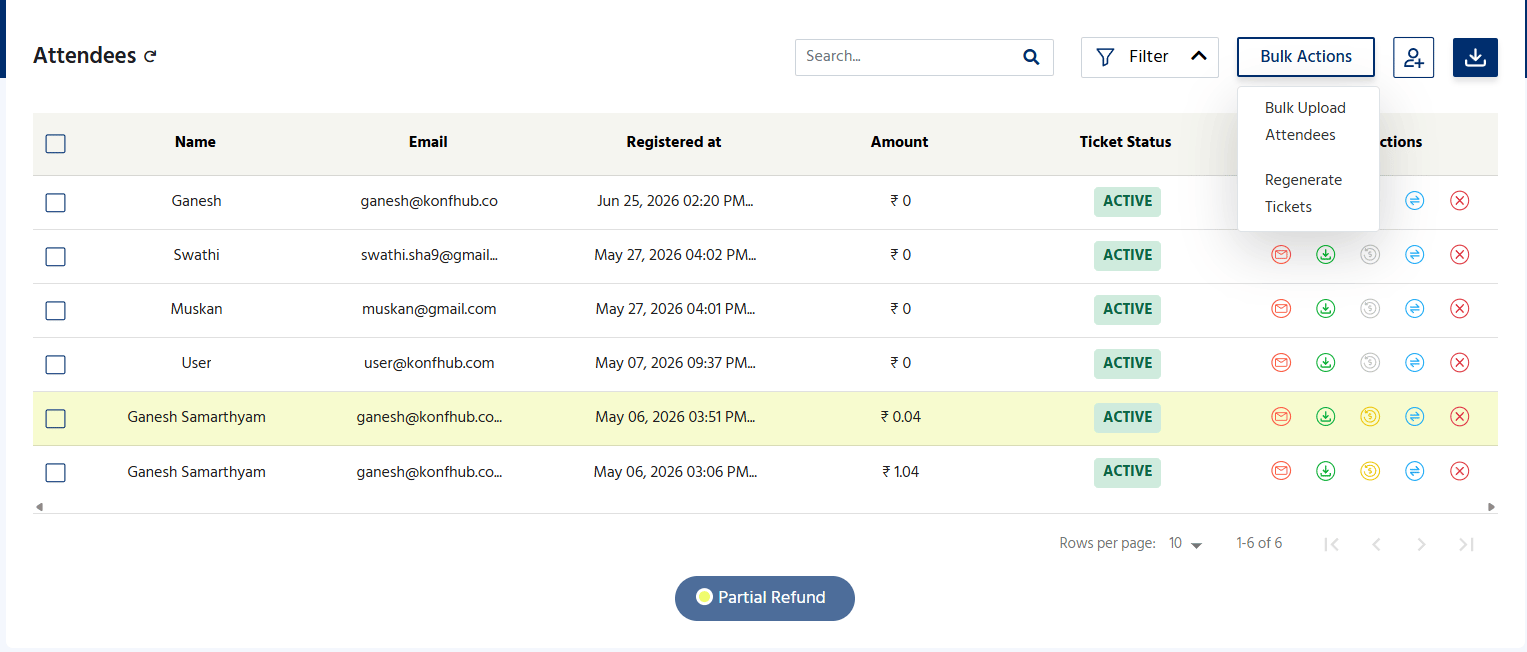
1
Prepare Your Spreadsheet
Create a CSV or Excel file with one row per attendee. Required columns include full name and email address. Additional columns can map to your event’s custom registration form fields. Download the sample template from the Participants section to ensure correct formatting.
Please start entering your data from the yellow highlighted row. Do not modify or delete the header, mandatory field information, sample data, or instruction rows above, as they are required for successful bulk upload.
2
Click Bulk Upload
In the Participants section, click the Bulk Upload button (or look for the upload/import icon).
3
Upload Your File
Select your prepared CSV or Excel file and upload it. KonfHub validates the data and flags any rows with errors (missing required fields, duplicate email addresses, etc.).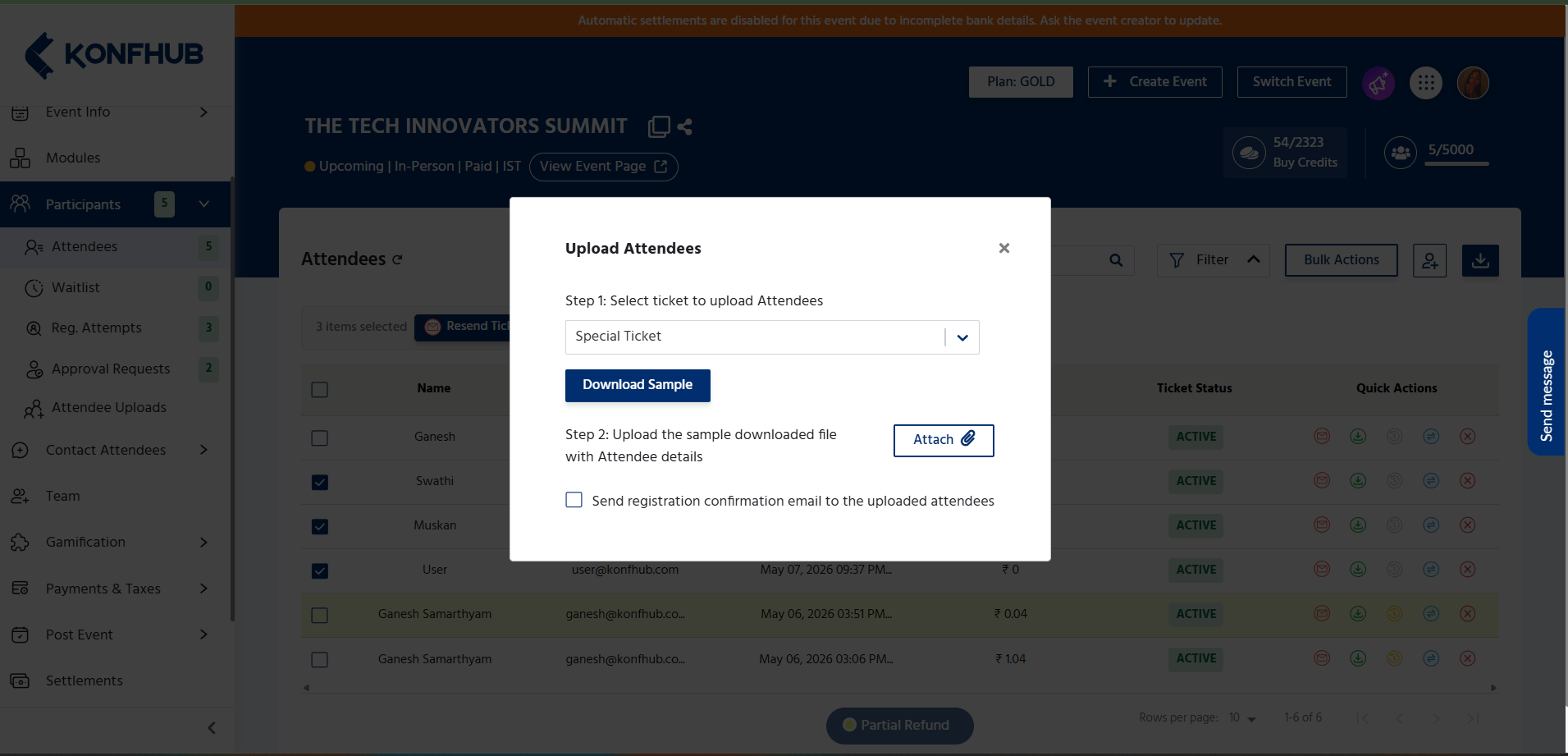
4
Review and Confirm
Review the validation summary. Fix any flagged errors in your file and re-upload if needed. Once the data looks correct, confirm the import.
5
Choose Email Notification Setting
Decide whether to automatically send each newly uploaded attendee a confirmation email with their ticket. Toggle this option on or off before finalizing the import.
The default bulk upload limit is 100 entries per batch. If you need to upload more than 100 attendees at once, contact the KonfHub support team at support@konfhub.com to request an increased limit for your event.
Downloading the Attendee List with QR Codes
KonfHub’s attendee download feature gives you a rich export of your participant data — including QR codes — that you can use for badge printing, lanyard labels, check-in preparation, or post-event analysis.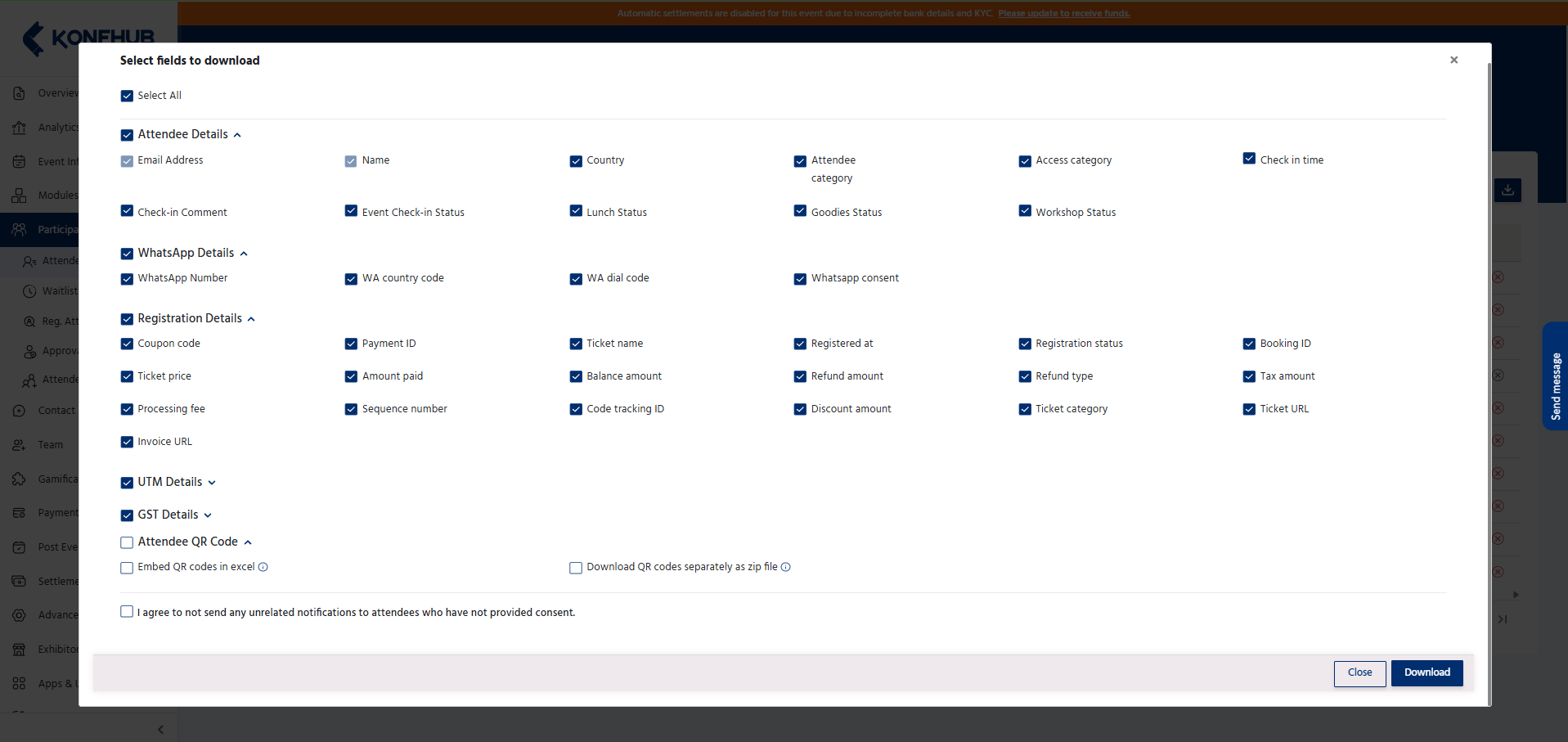
1
Apply Filters (Optional)
Use the search and filter tools to narrow your export to a specific subset of attendees, such as a particular ticket type or date range.
2
Click Download
Click the Download button in the Participants section toolbar. A dialog box appears with export options.
3
Select Your Fields
Choose which data columns to include in the export — name, email, ticket type, registration form responses, QR code image URL, ticket PDF URL, invoice URL, and more.
4
Embedded QR code
Select the format in which you want to download the attendee QR codes.
5
Download the File
Click Export to generate and download the file. The export is in Excel (XLSX) or CSV format and includes a QR code column with direct image links or embedded QR images, depending on your selection.
Registration Attempts
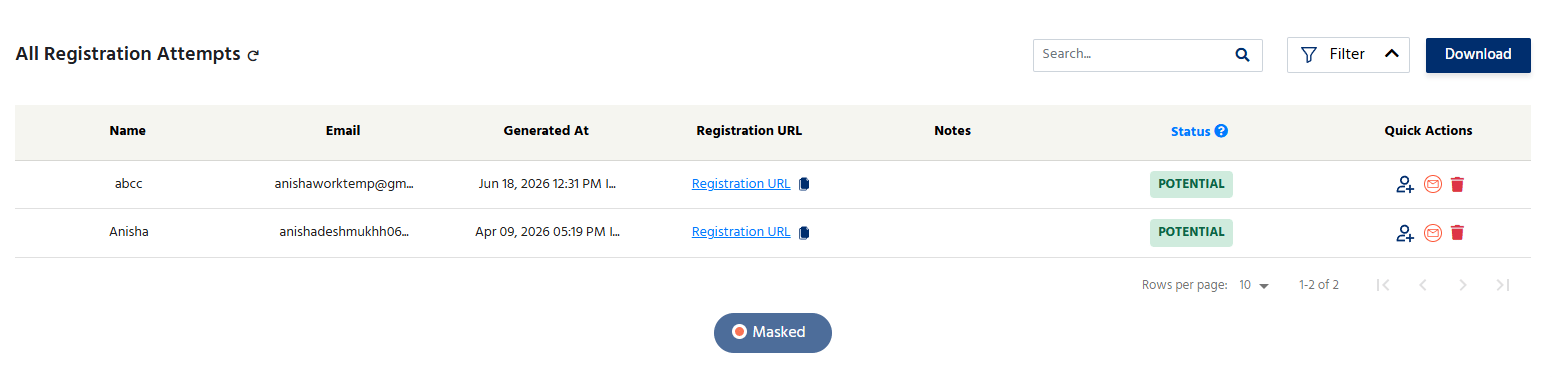
In addition to confirmed registrations, KonfHub tracks Registration Attempts — visitors who started the registration process but did not complete it. These are potential leads who showed interest in your event but dropped off before confirming. Navigate to the Registration Attempts tab within the Participants section to see:- The visitor’s email address (if they entered it before abandoning the form).
- The ticket type they were attempting to register for.
- The date and time of the attempt.
- The stage at which they dropped off (e.g., form submission vs. payment).
Single Registrations
The Single Registration option allows organizers to manually register an attendee for a selected ticket type without requiring the attendee to complete the online registration process.Select Ticket
Before adding a registration, select the appropriate Ticket Name from the dropdown list. The attendee will be registered under the selected ticket category.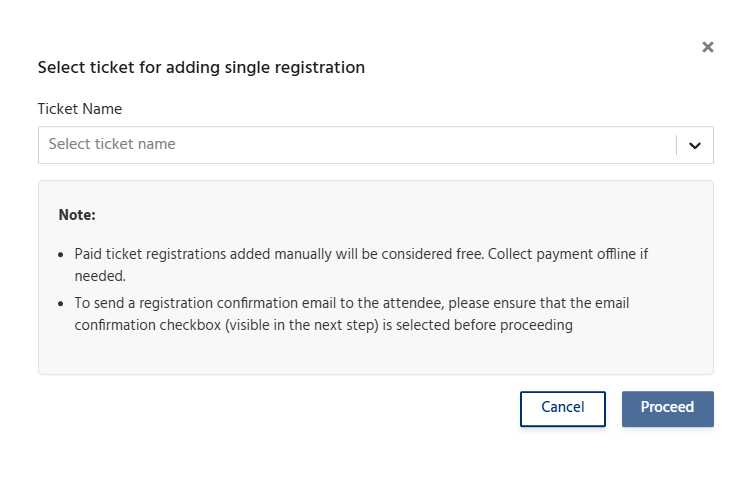
Registration Details
Enter the following mandatory information:- Name – Enter the attendee’s full name.
- Email Address – Enter a valid email address for the attendee. This email can be used to send the registration confirmation and event updates.
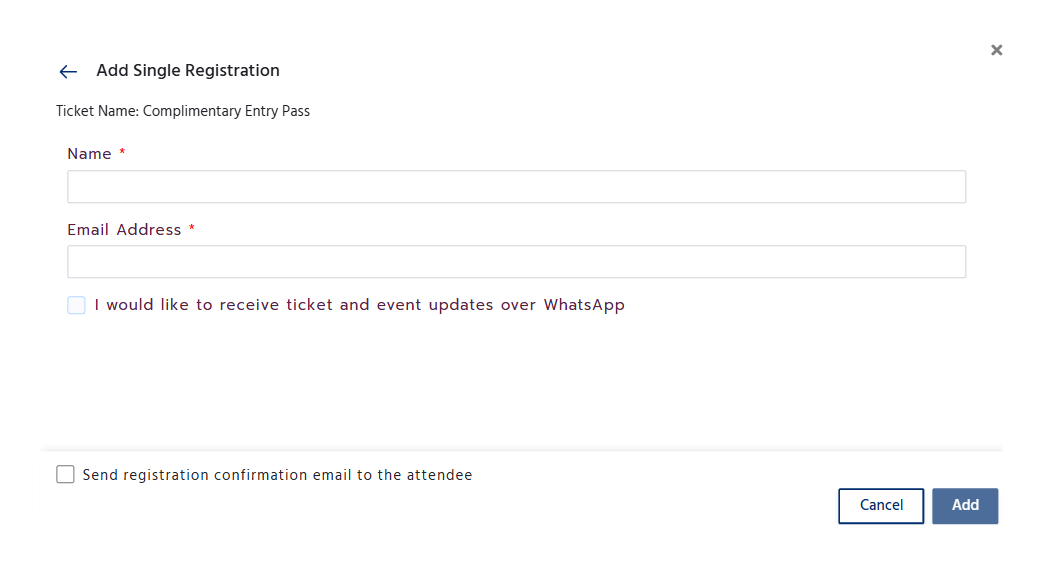
Fields marked with an asterisk (*) are mandatory and must be completed before the registration can be added.
The Send registration confirmation email to the attendee checkbox determines whether a confirmation email is sent after the registration is created. If left unchecked, the attendee will be registered successfully, but no confirmation email will be sent.