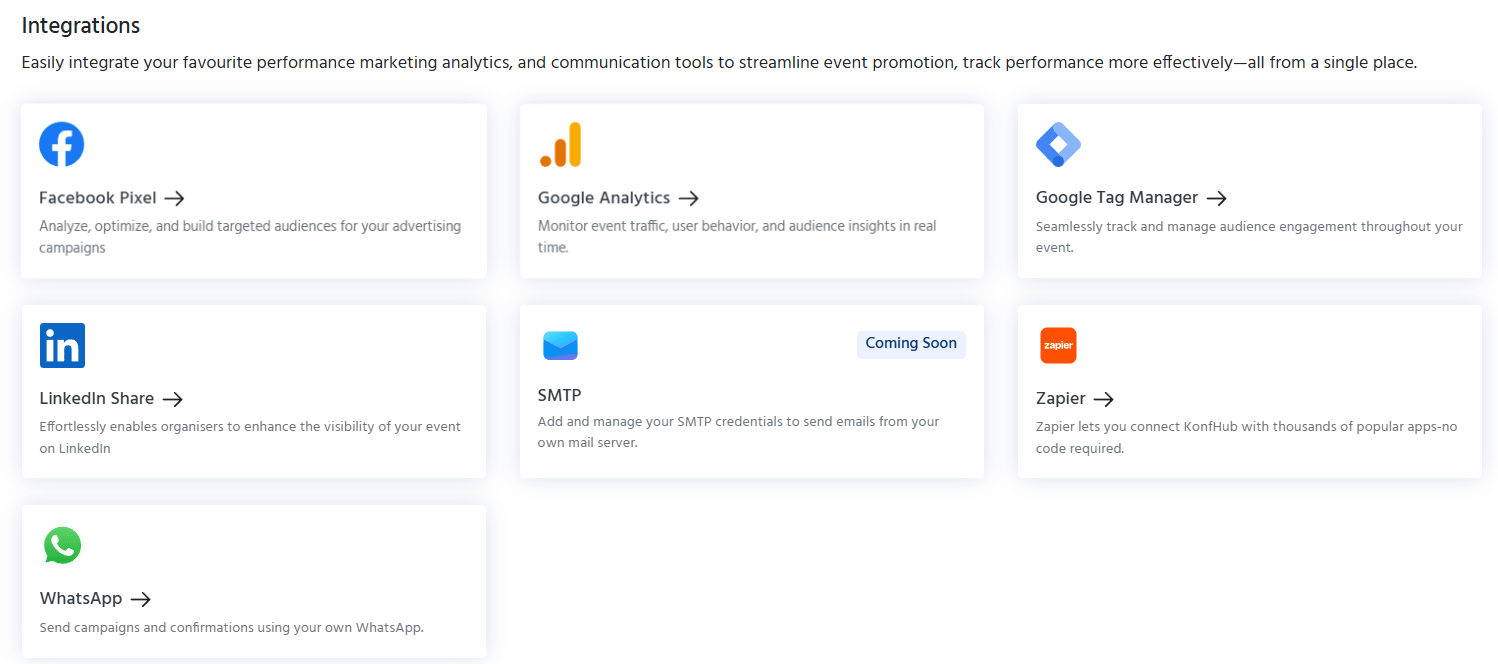
Meta (Facebook) Pixel
Meta Pixel is a small piece of JavaScript that you add to your event page and checkout page. Once installed, it tracks user actions — page views, registration starts, and completed conversions — and sends that data back to Meta’s ad platform, giving you precise visibility into how your Facebook and Instagram campaigns are performing.What You Can Do with Meta Pixel
- Track conversions from Facebook and Instagram ad campaigns all the way through to ticket purchase
- Retarget website visitors who viewed your event page but didn’t register, with follow-up ads on Facebook and Instagram
- Build lookalike audiences based on your registrant list to find new potential attendees
- Optimize ad delivery by feeding real conversion signals back to Meta’s algorithm
How to Configure
1
Get Your Pixel ID
In your Meta Business Manager or Ads Manager account, navigate to Events Manager → Data Sources → Pixels. Copy your Pixel ID (a 15–16 digit number).
2
Open Event Settings in KonfHub
In your KonfHub event dashboard, go to Integrations (or Advanced Settings depending on your plan interface) and find the Meta Pixel section.
3
Enter Your Pixel ID
Paste your Pixel ID into the field provided and save. KonfHub will automatically inject the pixel code on both your event landing page and the checkout page.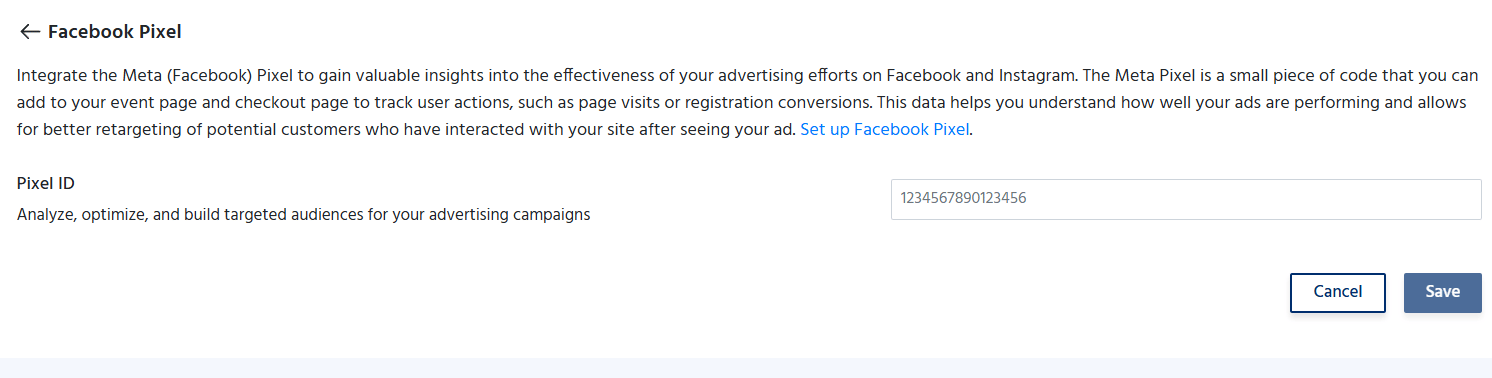
Google Analytics
Google Analytics gives you a detailed picture of how visitors find and interact with your event page. By connecting your GA property to KonfHub, you can monitor real-time traffic, understand which channels drive the most registrations, and make data-driven decisions about your promotional efforts.What You Can Track
- Traffic sources: which channels (organic search, paid ads, email, social) drive visitors to your event page
- User behavior: how long visitors spend on the page, which sections they scroll to, and where they drop off
- Conversion rates: the percentage of page visitors who complete registration
- Audience demographics: geographic location, device type, and new vs. returning visitors
- Real-time data: live view of active users on your event page
How to Configure
1
Get Your Tracking ID or Measurement ID
In Google Analytics, go to Admin → Property → Data Streams. Copy your Measurement ID (format:
G-XXXXXXXXXX for GA4) or Tracking ID (UA-XXXXXXXX-X for Universal Analytics).2
Open Event Settings in KonfHub
In your event dashboard, go to Integrations and find the Google Analytics section.
3
Enter Your Tracking ID
Paste your Measurement ID or Tracking ID into the field and save. KonfHub will add the Google Analytics tracking code to your event page automatically.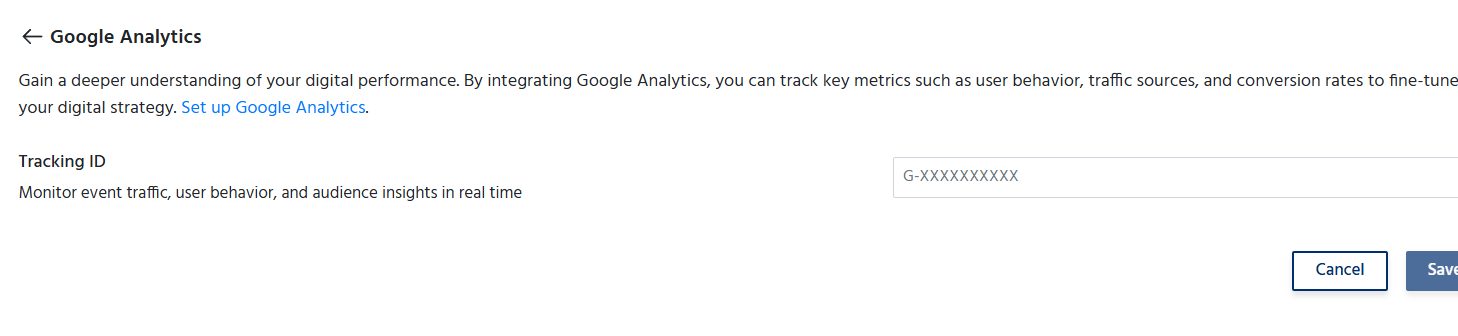
Google Tag Manager
Google Tag Manager (GTM) lets you deploy and manage multiple tracking tags — pixels, analytics scripts, conversion trackers, heatmap tools — through a single container, without requiring code changes to your event page each time you add or update a tag.What GTM Enables
- Deploy Meta Pixel, Google Analytics, LinkedIn Insight Tag, and other tracking scripts all from a single GTM container
- Make changes to your tracking setup instantly without coordinating code deployments
- Use GTM’s built-in triggers and variables to fire tags only under specific conditions (e.g., fire a conversion tag only when the thank-you page loads)
- Maintain a version history of all tag changes and roll back if needed
How to Configure
1
Get Your GTM Container ID
In your Google Tag Manager account, select your container and copy the Container ID (format:
GTM-XXXXXXX).2
Open Event Settings in KonfHub
In your event dashboard, go to Integrations and find the Google Tag Manager section.
3
Enter Your Container ID
Paste your GTM Container ID into the field and save. KonfHub will inject the GTM snippet on your event page, activating all tags you have configured inside your container.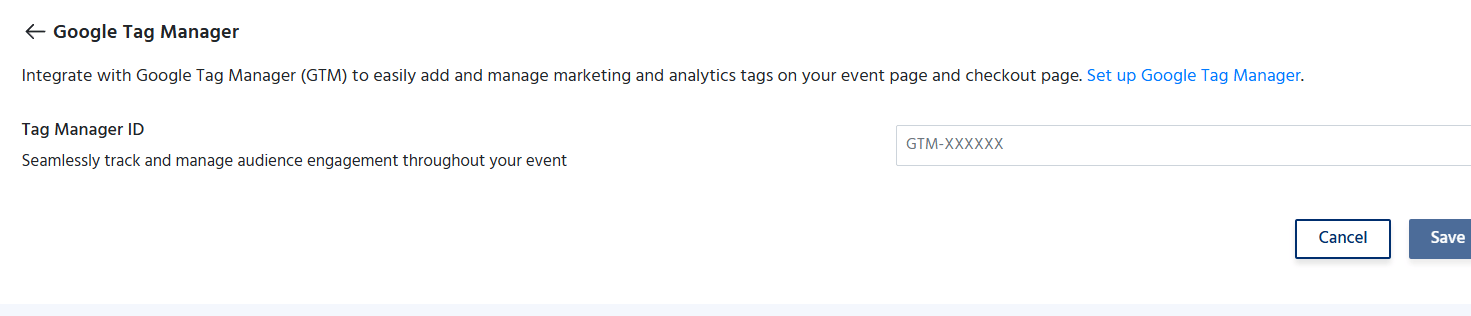
When using GTM, you can manage Meta Pixel and Google Analytics from within GTM itself rather than entering them separately in KonfHub. Configure whichever approach works best for your team’s workflow.
LinkedIn Share
LinkedIn Share automatically prompts your attendees to post about your event on LinkedIn immediately after they complete registration. Since most tech and professional events attract an audience that is active on LinkedIn, this feature can significantly amplify your event’s organic reach with no additional marketing effort.How It Works
After an attendee successfully registers, KonfHub displays a Share on LinkedIn prompt. The prompt is pre-populated with a message about your event and, optionally, a custom banner image you upload. Attendees can share with a single click, broadcasting your event to their entire professional network.What You Can Configure
- Pre-written share message: customize the text that pre-populates in the attendee’s LinkedIn post to ensure your key messaging is included
- Custom banner image: upload a branded event banner (recommended dimensions: 1200 × 627 px) that appears as the link preview image in LinkedIn posts
- Toggle on/off: enable or disable the LinkedIn Share prompt for your event at any time
How to Enable
1
Go to Event Settings
In your event dashboard, navigate to Integrations or Advanced Settings.
2
Find the LinkedIn Share Section
Locate the LinkedIn Share toggle and enable it.
3
Customize Your Message and Banner
Enter the pre-written share message you want attendees to post and upload your custom banner image. Save your settings.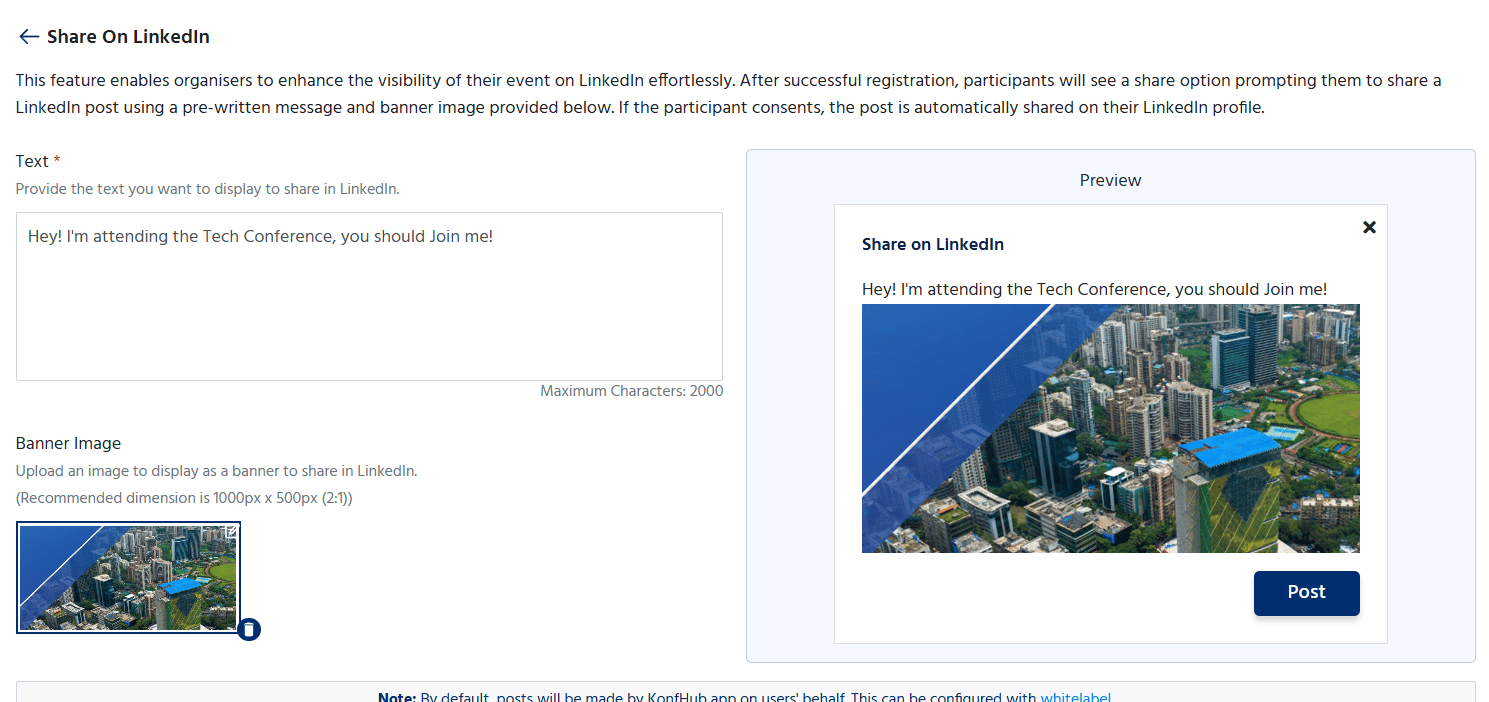
WhatsApp Integration
WhatsApp is one of the highest-engagement communication channels available, with open rates far exceeding email. KonfHub’s WhatsApp integration lets you send event confirmations, reminders, and campaigns to attendees directly via WhatsApp. You have two options for how to send.- KonfHub WhatsApp Account
- Bring Your Own WhatsApp (BYOW)
Use KonfHub’s own verified WhatsApp Business account to send messages to your attendees.Advantages: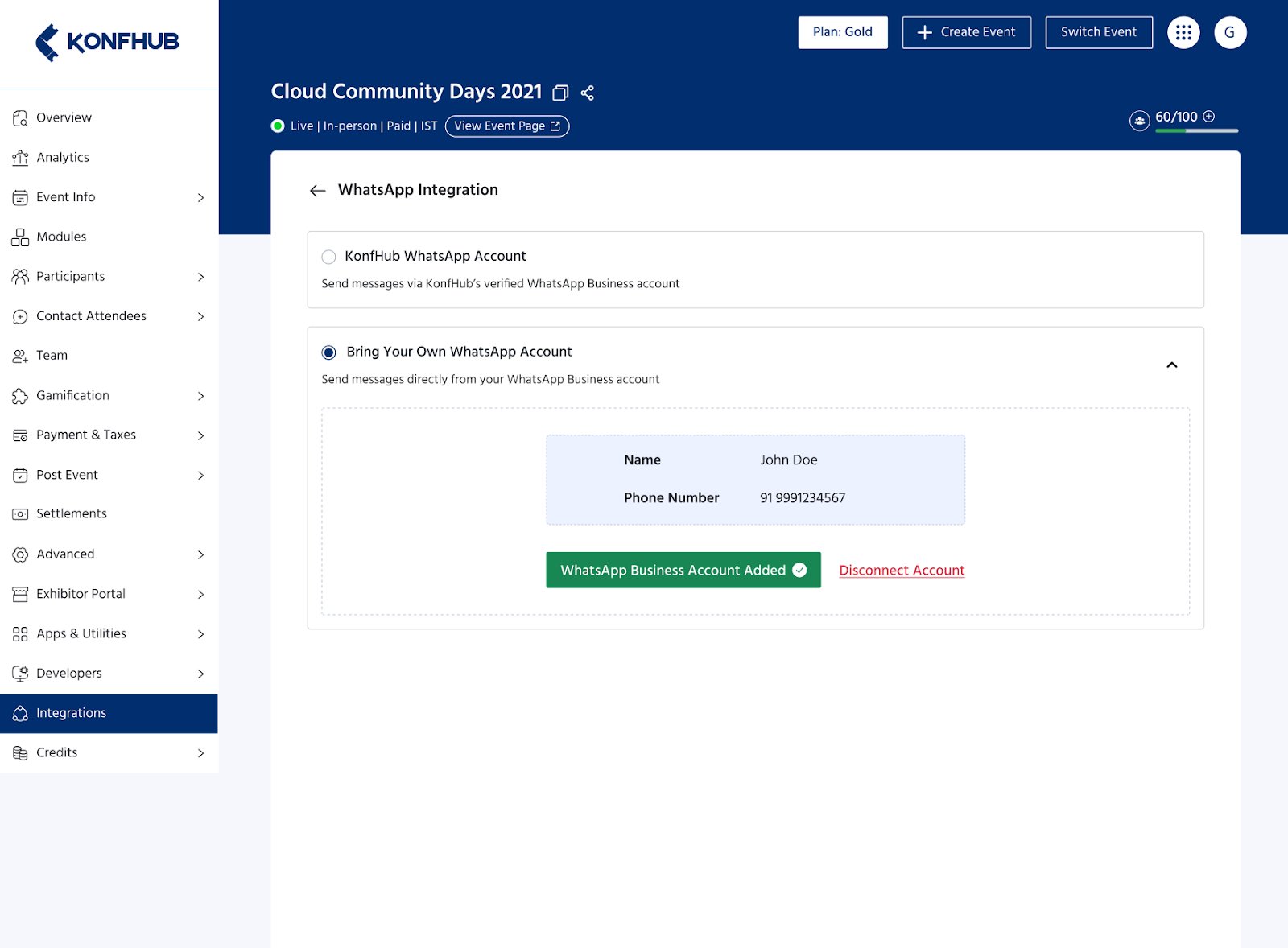
- Quick setup — no additional configuration required
- Reliable delivery through KonfHub’s established, verified Business account
- Ideal for getting started immediately
Plan Availability
Marketing integrations are available on Silver and Gold plans. The full Martech suite (Meta Pixel, Google Analytics, GTM) requires a Gold plan.To access full Martech integrations, upgrade to the Gold plan. Visit konfhub.com/pricing or contact the KonfHub sales team for custom pricing on large events.