Enabling Offline Payments
Offline Payments must be enabled by the KonfHub team.- Contact the KonfHub support team and request Offline Payments activation for your event.
- Navigate to Payments & Taxes → Connect Your Payment Gateway.
- Once enabled, select Offline Payments as an available payment method.
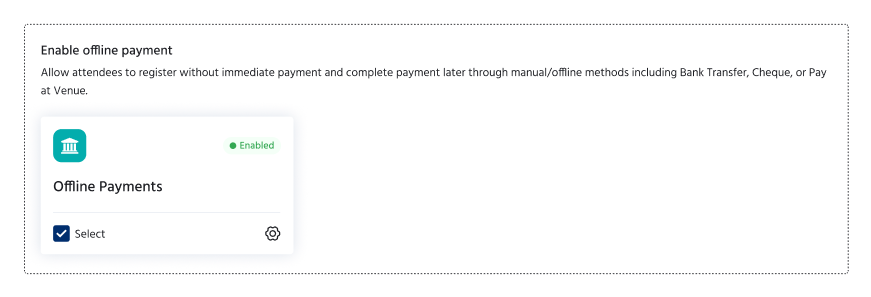
Configuring Offline Payment Settings
After enabling the feature, you can customize the offline payment experience for your attendees.1. Customize Payment Instructions
Enter the instructions that attendees will see when they select the Pay Offline option. You can include:- Bank account details
- Payment reference information
- Cheque payment instructions
- Contact details for payment-related queries
- Any deadlines for completing the payment
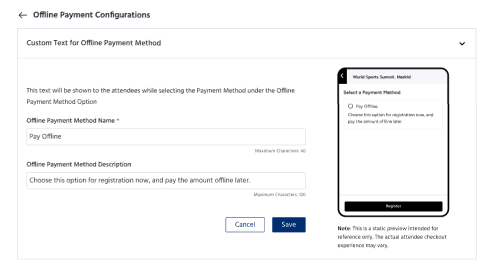
2. Select Eligible Tickets
You can control which tickets support offline payments. Offline Payments can be enabled:- Globally from the Offline Payments settings.
- Individually at the ticket level.
Note: If a participant selects a ticket that does not support offline payments, the option will be automatically disabled.
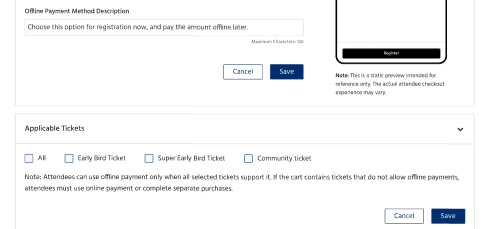
3. Customize the Post-Registration Message
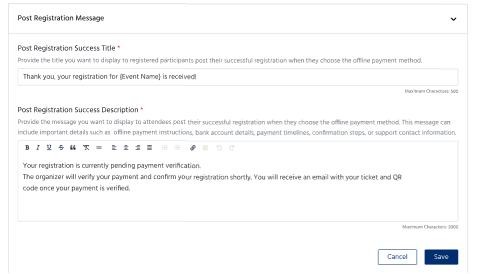
Configure a dedicated confirmation message for attendees who choose offline payment. This message can include:- Payment instructions
- Expected verification timelines
- Contact information
- Additional next steps
4. Customize Email Templates
You can create a separate email template specifically for offline registrations to ensure participants receive all necessary payment details and instructions.5. Configure Payment Gateway Charges
Set the percentage of payment gateway charges applicable to your event according to your organization’s policies.Managing Offline Payment Requests
All offline payment registrations can be managed from: Participants → Offline Payments This section displays every attendee who has selected the offline payment option.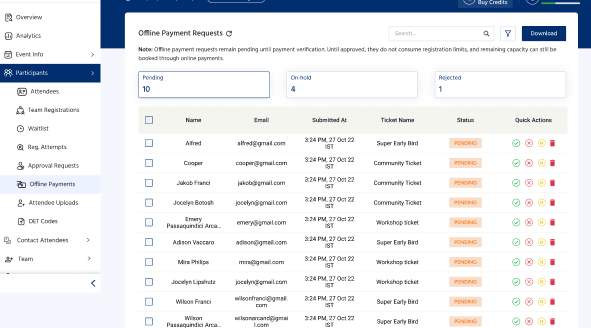
Available Actions
Organizers can perform the following actions:- Approve Payment: Confirm the payment and complete the registration.
- Attach Proof of Payment: Upload supporting documents or payment confirmations.
- Accept and Send Confirmation: Approve the registration and immediately send the confirmation email to the participant.
- Keep On Hold: Retain the request while awaiting payment verification or additional information.
- Reject Request: Decline the offline payment request.
Important: When an offline payment request is rejected, the reserved ticket is automatically released and becomes available for new registrations.
Best Practices
- Clearly mention payment deadlines in your instructions.
- Provide accurate bank account or cheque details.
- Review pending offline requests regularly to avoid registration delays.
- Use customized email templates to keep attendees informed throughout the payment process.
- Reject invalid requests promptly so that ticket inventory remains available to other participants.