Selected Forms
The Selected Forms area displays all the registration fields currently included in the registration form.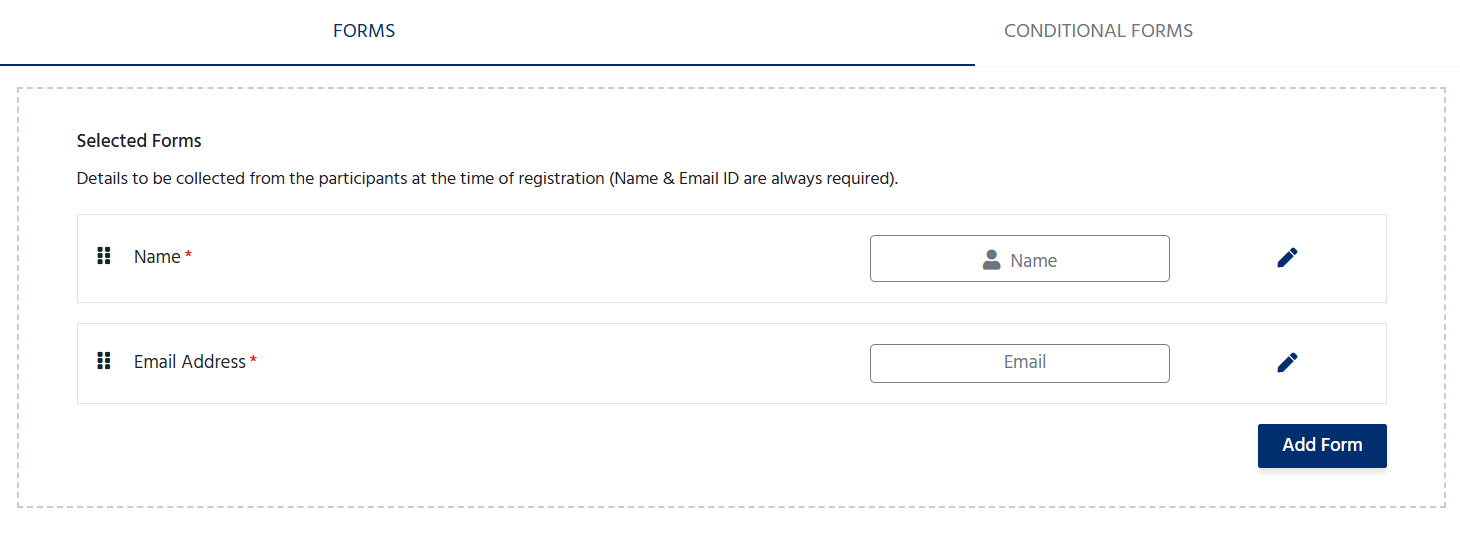
- Reorder Fields: Drag and drop the six-dot icon to change the order in which fields appear to participants.
- Edit Form: Click the Edit (✏️) icon to modify the field label, validation, placeholder, or other settings.
- Remove Form: Click the Remove (-) icon to delete optional fields from the registration form. Mandatory fields such as Name and Email Address cannot be removed.
- Add Form: Click the Add Form button to create a new custom registration field.\
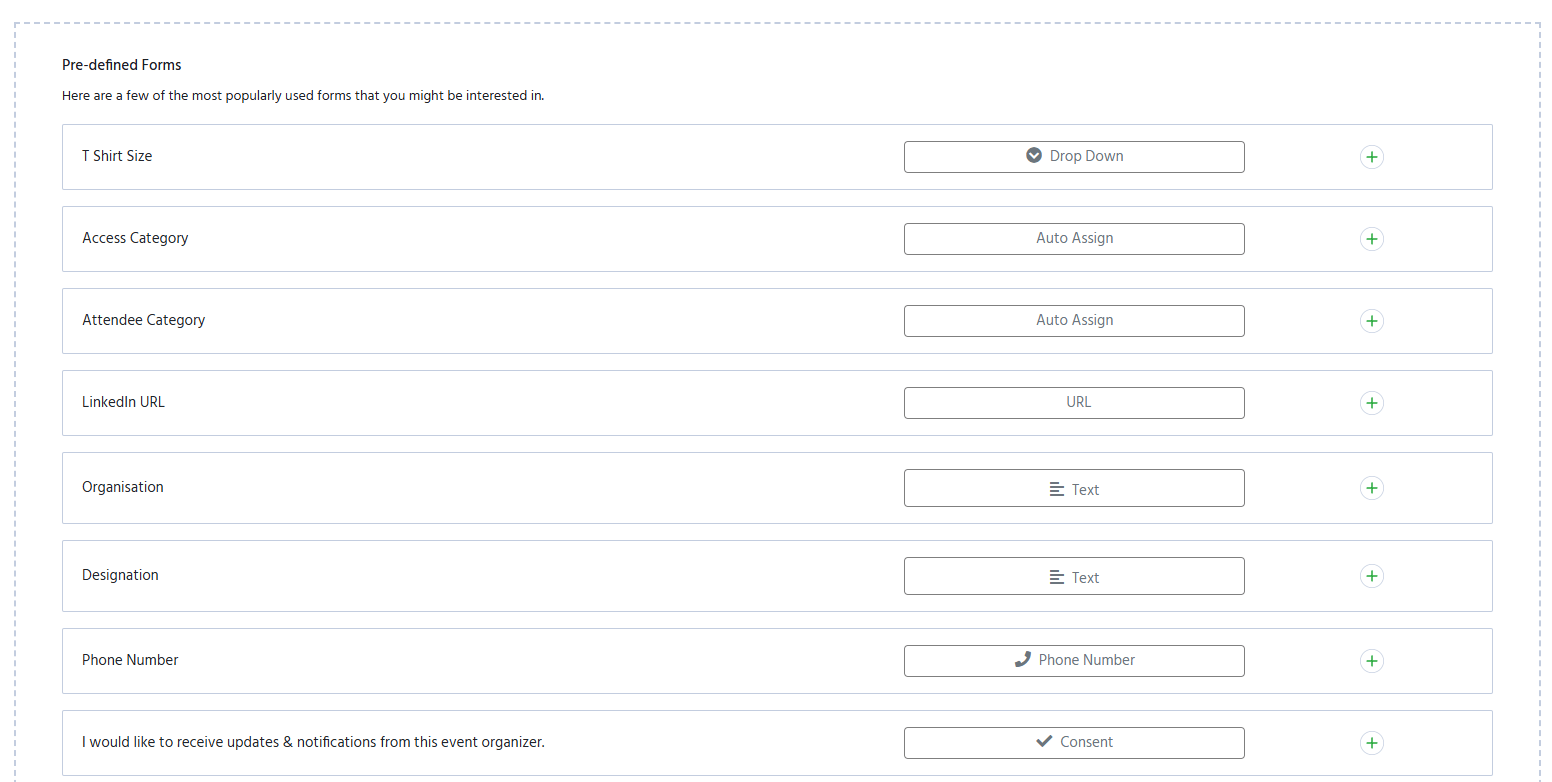
Pre-defined Forms
The Pre-defined Forms section provides commonly used registration fields that can be added with a single click. Examples include:- T-Shirt Size
- Company Name
- Designation
- City
- Gender
- Dietary Preferences
- Phone Number
- And other frequently used attendee details
\
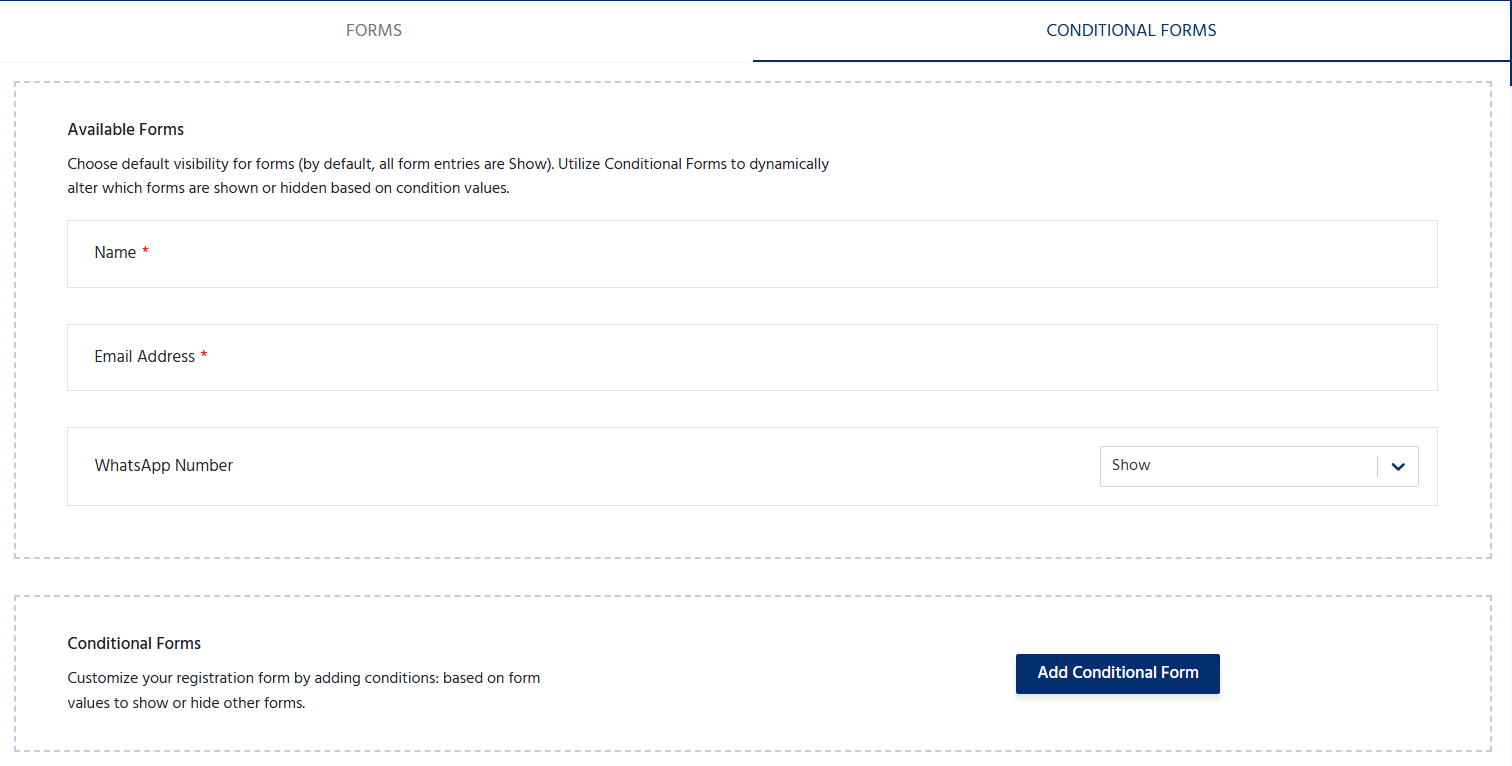
Conditional Forms The Conditional Forms feature allows organizers to display specific questions based on a participant’s previous response. This creates a more dynamic registration experience by showing only relevant fields.How It Works
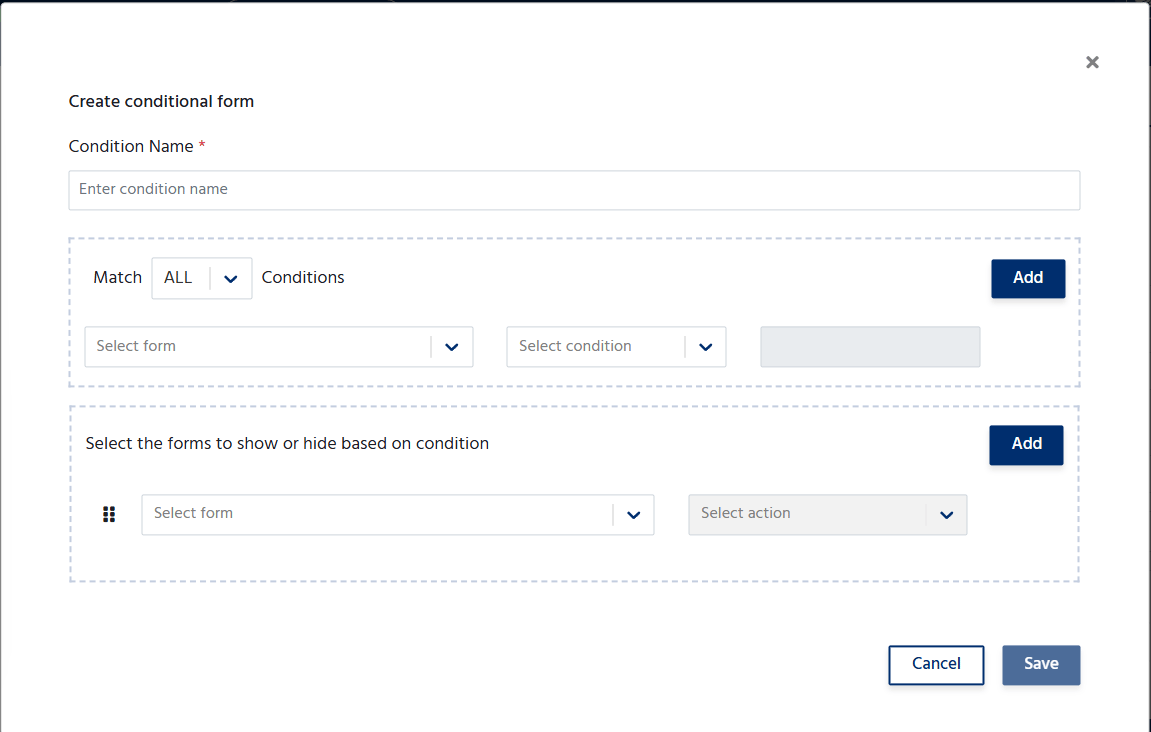
- Create a condition based on the answer to an existing form field.
- When a participant selects a specific option, the related form(s) are displayed automatically.
- If the condition is not met, the additional form fields remain hidden.
Example
Suppose you have a question: Are you attending the workshop?- Yes → Display the Workshop Session Preference field.
- No → Hide the workshop-related questions.