Tickets Tab
The Tickets tab shows all tickets created for your event as cards, grouped by category. Tickets that haven’t been assigned a category appear under Uncategorized Tickets.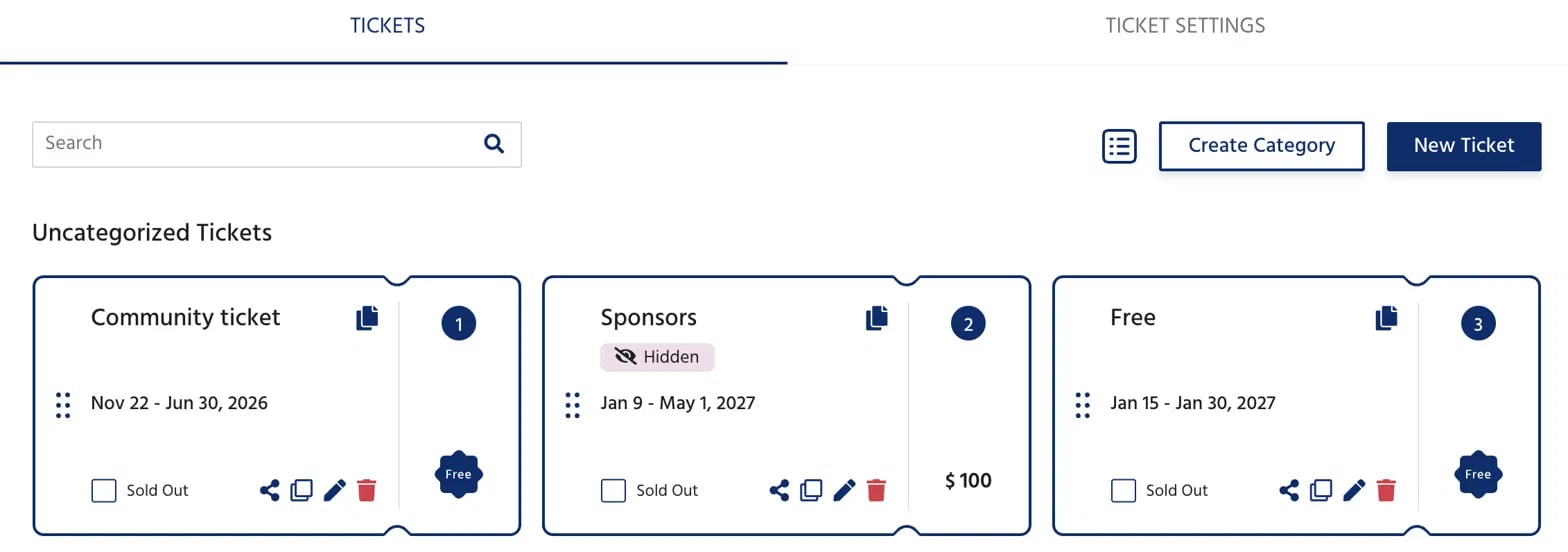
- Ticket name and a Hidden badge if the ticket is not publicly visible
- Availability window - the date range during which registrations are open
- Price - shown as Free or the ticket amount
- Sold Out checkbox - manually mark a ticket as sold out to stop new registrations
- Action icons - Share, Duplicate, Edit, and Delete
- A numbered badge showing the ticket’s display order on the event page
Creating a New Ticket
Click New Ticket to open the Create New Ticket form.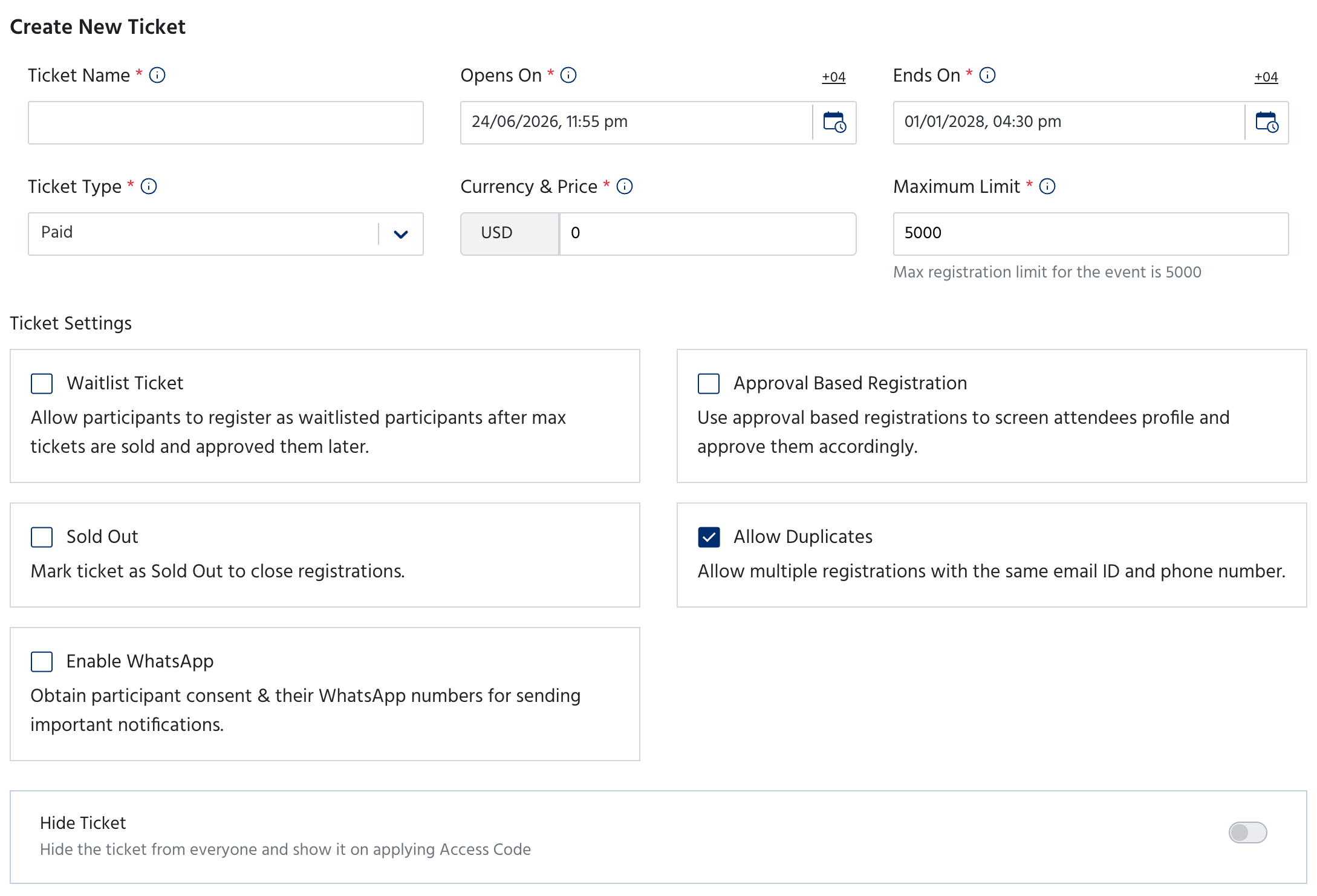
Basic Details
Ticket Settings
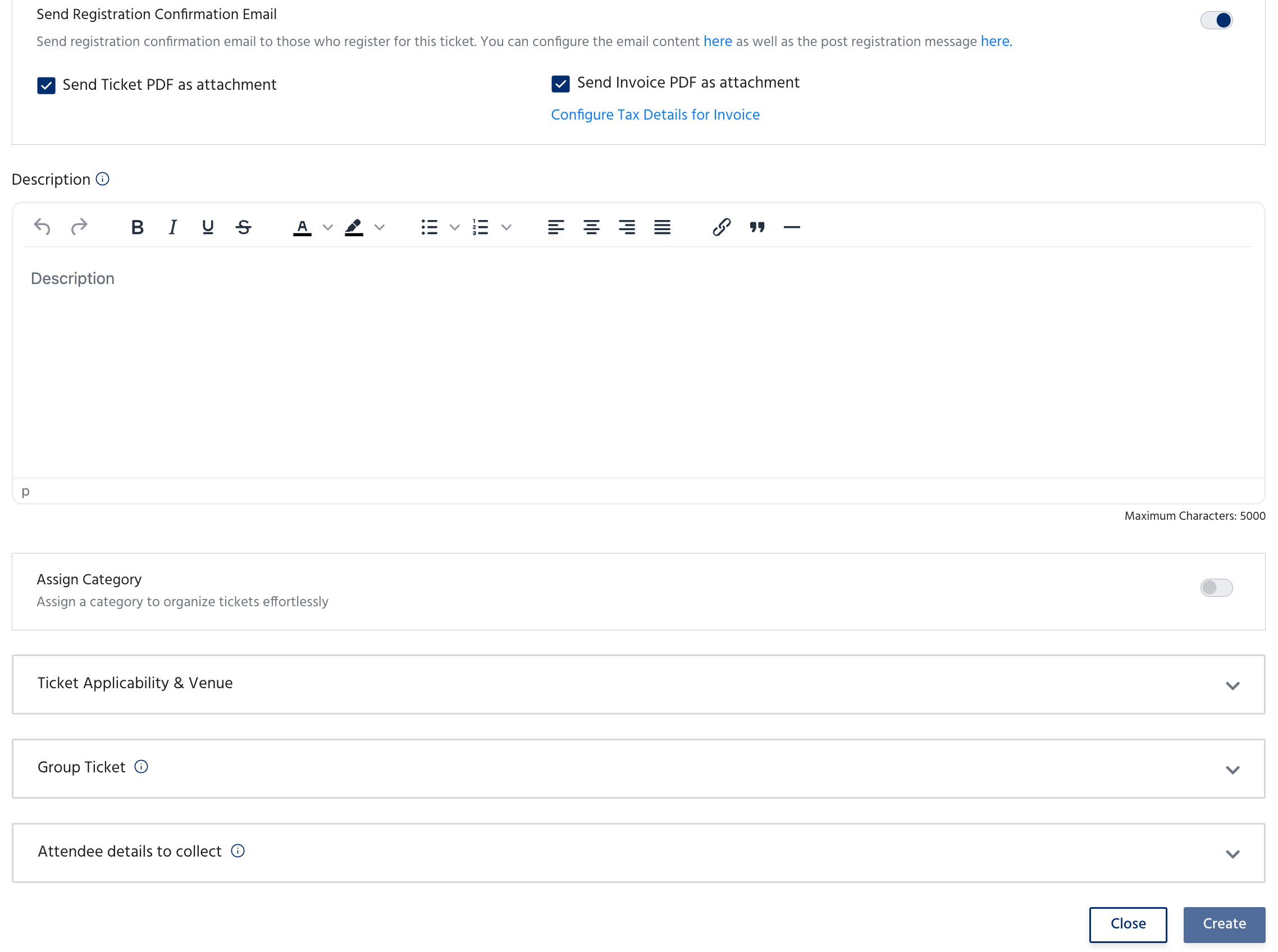
Registration Confirmation Email
Toggle Send Registration Confirmation Email to automatically send a confirmation email to attendees when they register for this ticket. Once enabled, you can also:- Check Send Ticket PDF as attachment to include the ticket in the email
- Check Send Invoice PDF as attachment to include an invoice — click Configure Tax Details for Invoice to set up your tax information
Description
Add an optional rich text description for the ticket — up to 5,000 characters. This appears on the event page to help attendees understand what the ticket includes.Additional Options
Click Create to save the ticket, or Close to discard.
Creating a Ticket Category
Click Create Category to group related tickets together. Categories are displayed as named sections on the event page and checkout page, making it easier for attendees to find the right ticket.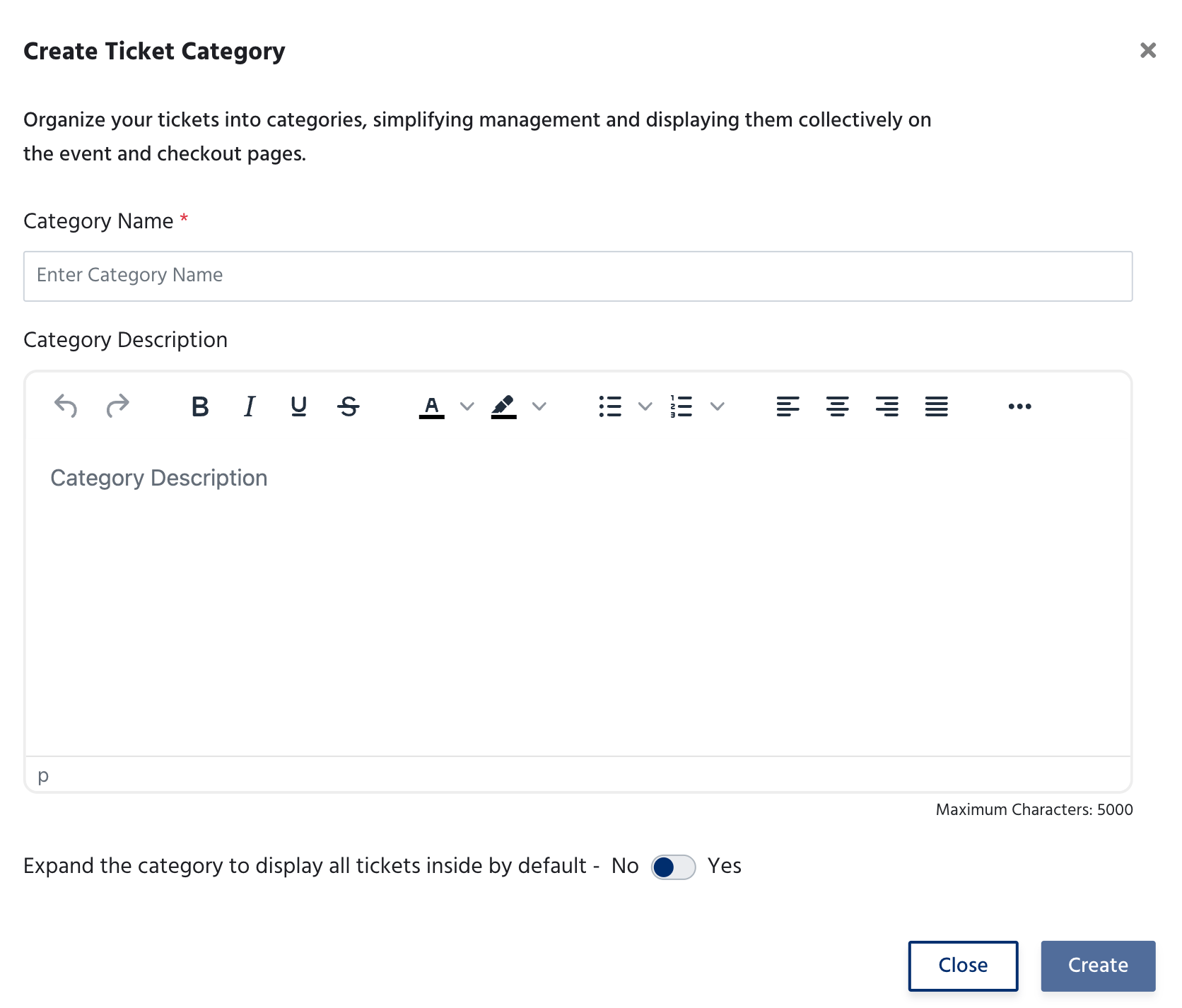
Click Create to save the category, or Close to discard. Once created, you can assign tickets to it during ticket creation or by editing an existing ticket.
Ticket Settings Tab
The Ticket Settings tab contains event-wide registration controls that apply across all tickets.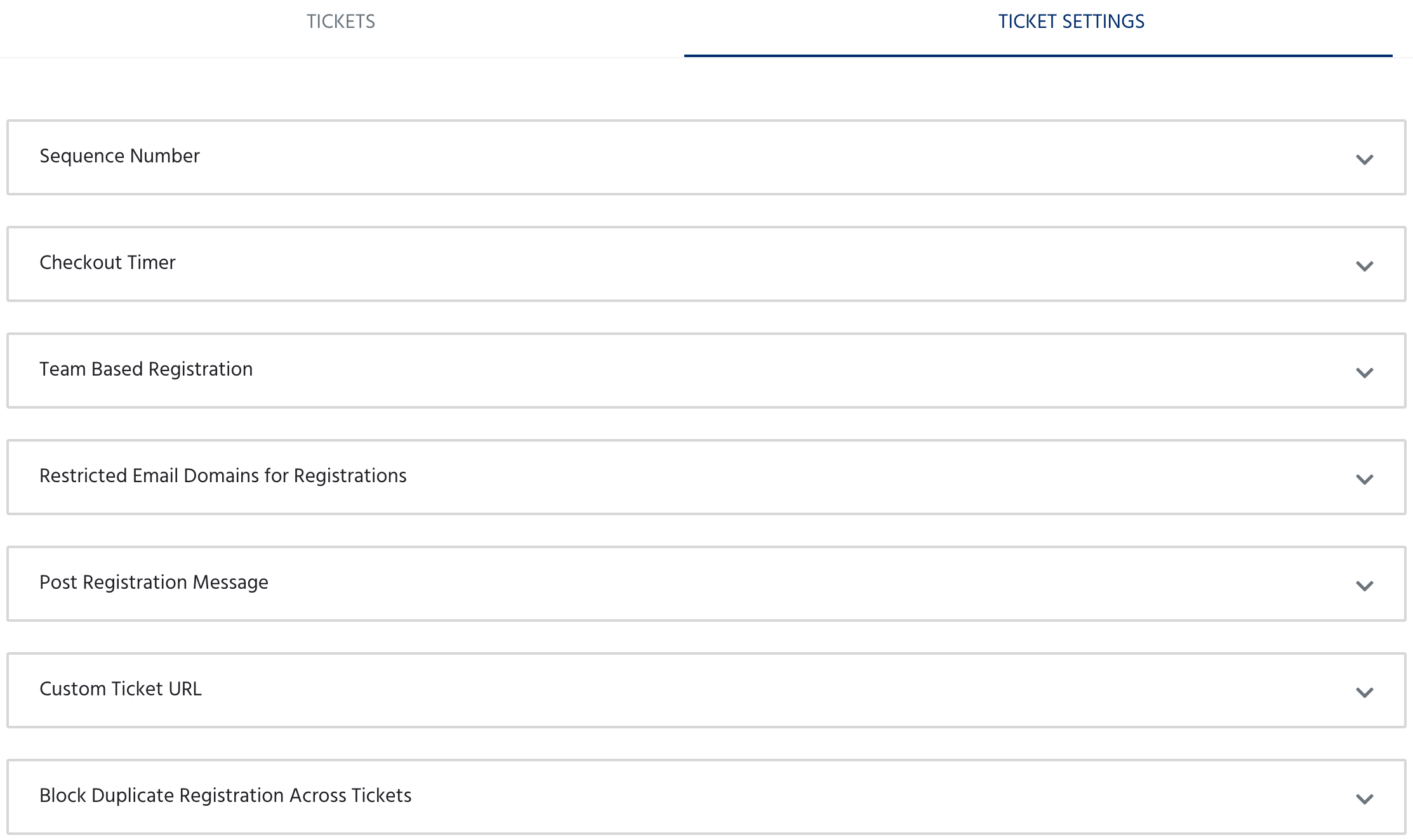
Each setting is expandable - click on it to configure the details.
Next Steps
Forms
Customise the registration form attendees fill out when signing up.
Coupons
Create discount codes and promotional coupons for your tickets.